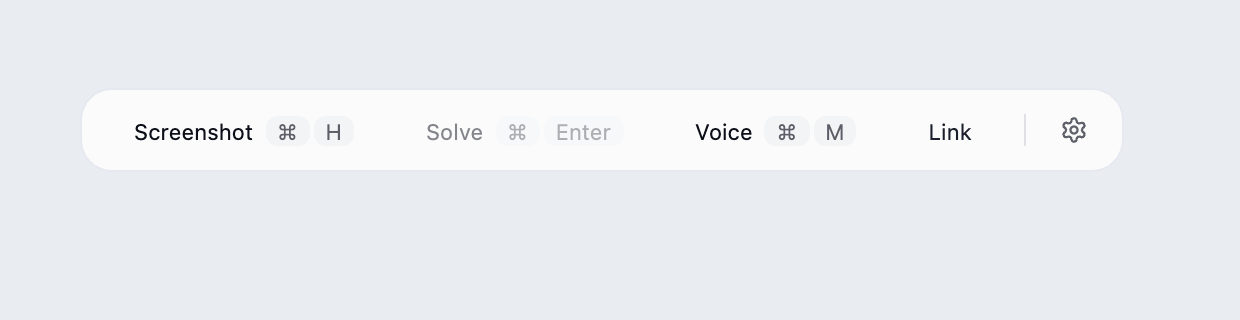
Install the client
Check the system requirements, then use the download page to choose Windows, Apple Silicon, or Intel Mac.
The images below show the updated client interface. See the changelog for installer release status.
Windows
Install and open the client. If security software blocks installation or keyboard protection, verify the installer source and the reported reason before allowing the relevant program. Allow desktop apps to access the microphone in Windows Settings → Privacy & security → Microphone.
macOS permission check
On first launch, the client shows three permissions and their current status:
| Permission | Used for | Action |
|---|---|---|
| Screen Recording | Screenshots and computer audio capture | Open System Settings and enable GankInterview |
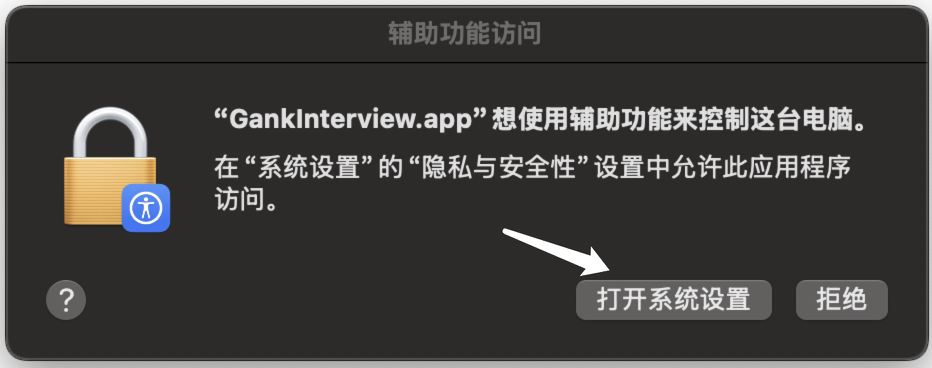
| Accessibility | Global shortcuts and window interaction | Open System Settings and enable GankInterview |
| Microphone | Capturing the local microphone | Select Allow microphone and approve the system prompt |
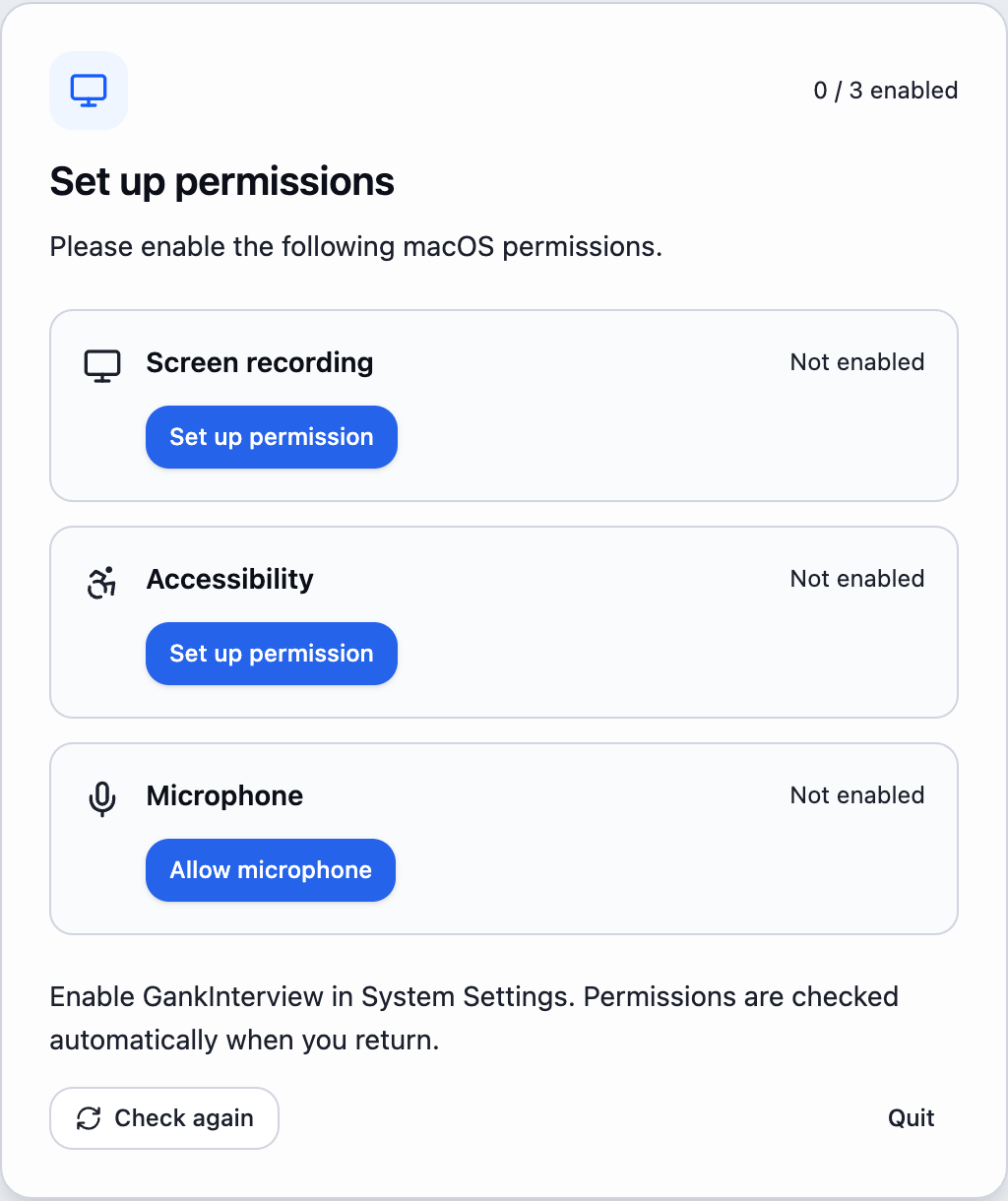
- Grant each missing permission using its button. Permissions already enabled need no action.
- Return to the client after changing System Settings. It checks again; you can also select Check again.
- If the client says a restart is required, select Restart app or quit and reopen it.
- Once all three permissions are available and no restart is required, the client continues automatically.
If microphone access was previously denied, enable it manually in System Settings. Follow any macOS instruction to quit and reopen; closing a window does not quit the app.
The system Accessibility settings below are a reference. Labels and placement vary by macOS version:
Sign in
Select Login to open the browser, sign into your account, and return to the client.
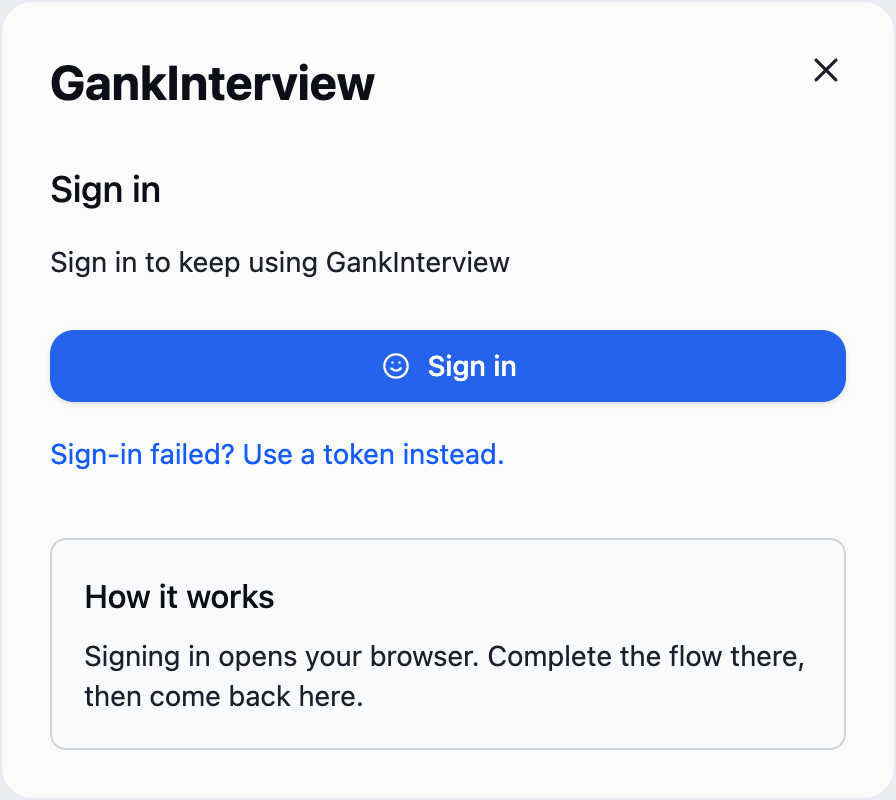
If browser login cannot return to the client, select the manual Token login option. Copy the manual login token from Dashboard → Account settings → General, paste it into the client, and confirm. This token signs into your account; do not share it.
After login, the floating toolbar appears. Screenshot and Solve are for image-based tasks; Voice starts recording and opens the voice panel; Link pairs a phone; the gear opens Settings.
Before recording, open toolbar gear → Voice Settings, choose your role and audio setup, and wait for saving to finish. Click Voice or use the default Ctrl / ⌘ + M to start recording, then choose Manual or Auto in the open voice panel.