Custom shortcuts
Open Settings → Advanced Settings → Custom shortcuts and compare the full default list. The walkthrough changes capture to ⌘ + Shift + S; its default remains Ctrl / ⌘ + H.
INTERACTIVE WALKTHROUGH
Try it: change and verify shortcuts
Click the numbered markers to see what happens next in the client, or use the tutorial controls below.
Click the gear on the toolbar
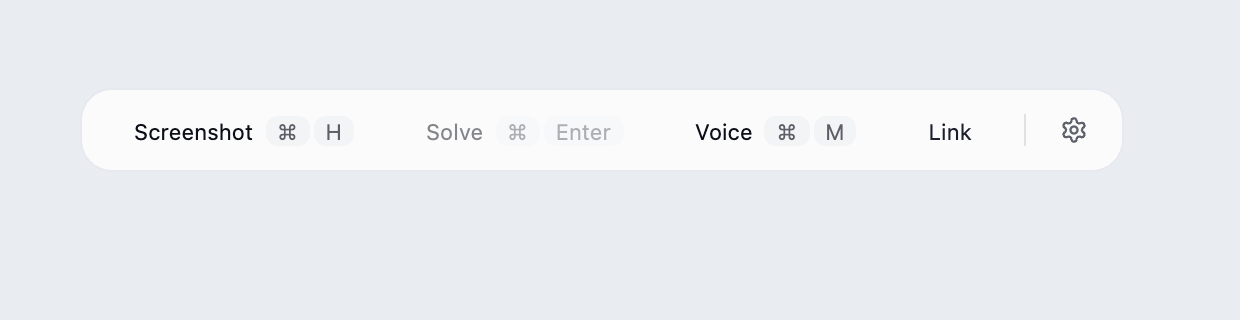
Find the desktop client's floating toolbar and click the gear at its right edge.
What you should see: The settings panel opens with languages, models, capture mode and links near the bottom.
These steps use fixed examples. Click the yellow image marker or use Next tutorial step below.
Show all illustrated steps
1. Click the gear on the toolbar
Find the desktop client's floating toolbar and click the gear at its right edge.
The settings panel opens with languages, models, capture mode and links near the bottom.
These steps use fixed examples. Click the yellow image marker or use Next tutorial step below.
2. Open Advanced Settings near the bottom
Look near the bottom of the settings panel and click Advanced Settings, alongside Knowledge Base and Voice Settings.
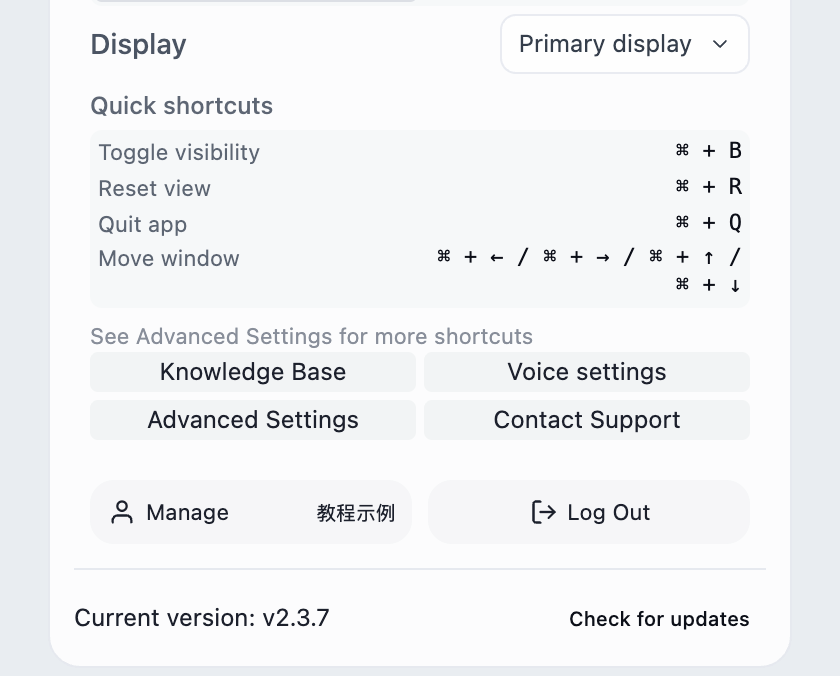
The advanced window opens. Click a section heading to expand it; scroll inside the window to find lower sections.
The image focuses on the entry buttons. Opening the window does not change a setting.
3. Expand the custom shortcut section
Click the custom shortcut heading in Advanced Settings.
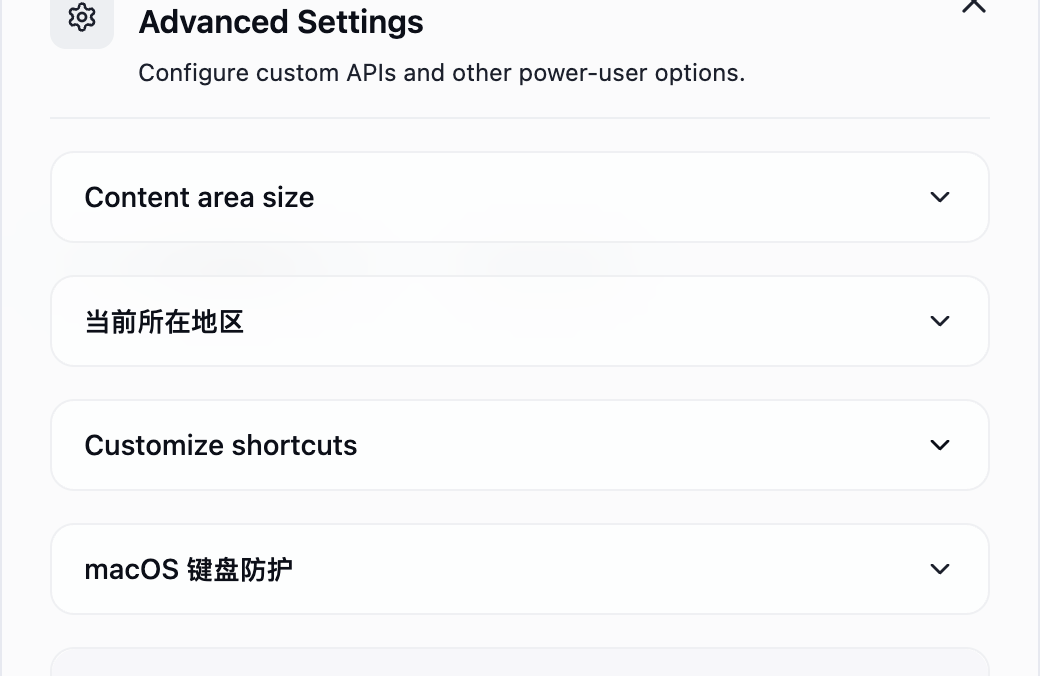
The current group appears with shortcut inputs, Previous, Next and Save.
Shortcuts are grouped by function. Find the correct group before changing a key.
4. Click Next inside the shortcut section
Click Next to move from general controls to the capture group. Check the group name and page counter.
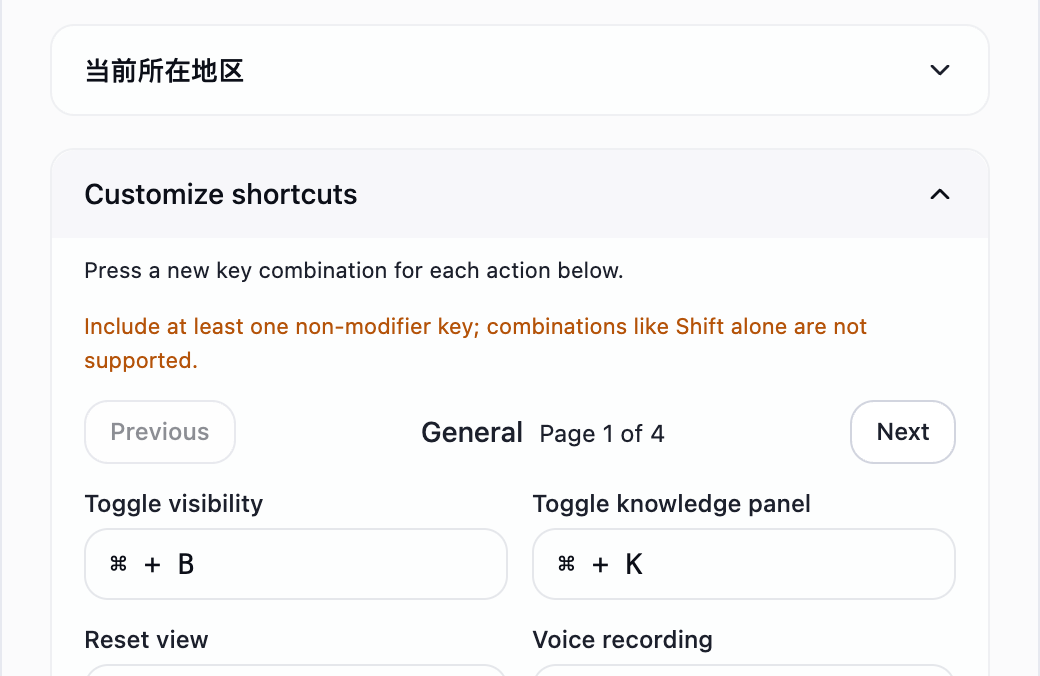
The inputs now show capture and solution actions, with labels above each field.
This Next button changes shortcut groups. Other advanced sections remain in place. Use Previous to go back.
5. Focus the capture field and press the new combination
Click the screenshot shortcut field and physically press the combination. This Mac example uses ⌘ + Shift + S. On Windows, press your intended Ctrl combination.
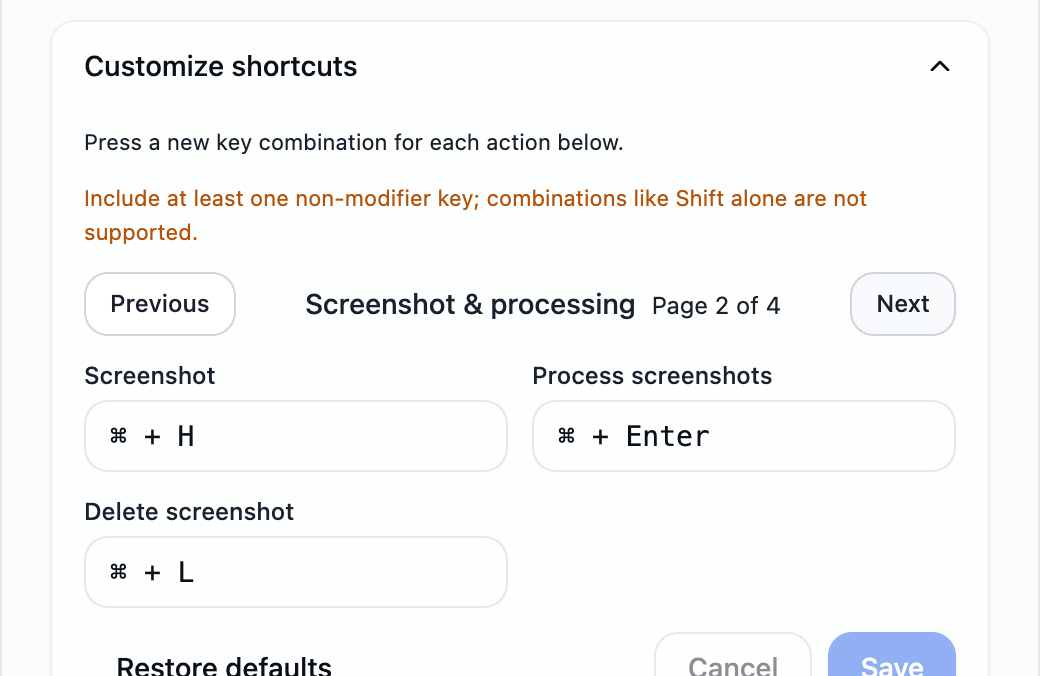
The field displays the keys you pressed.
Capture defaults to Ctrl / ⌘ + H; this step demonstrates a custom binding. Press the keys instead of typing Command or Ctrl. Resolve conflicts before saving.
6. Check for conflicts and click Save
Confirm the action and combination, then click Save at the bottom of this section.
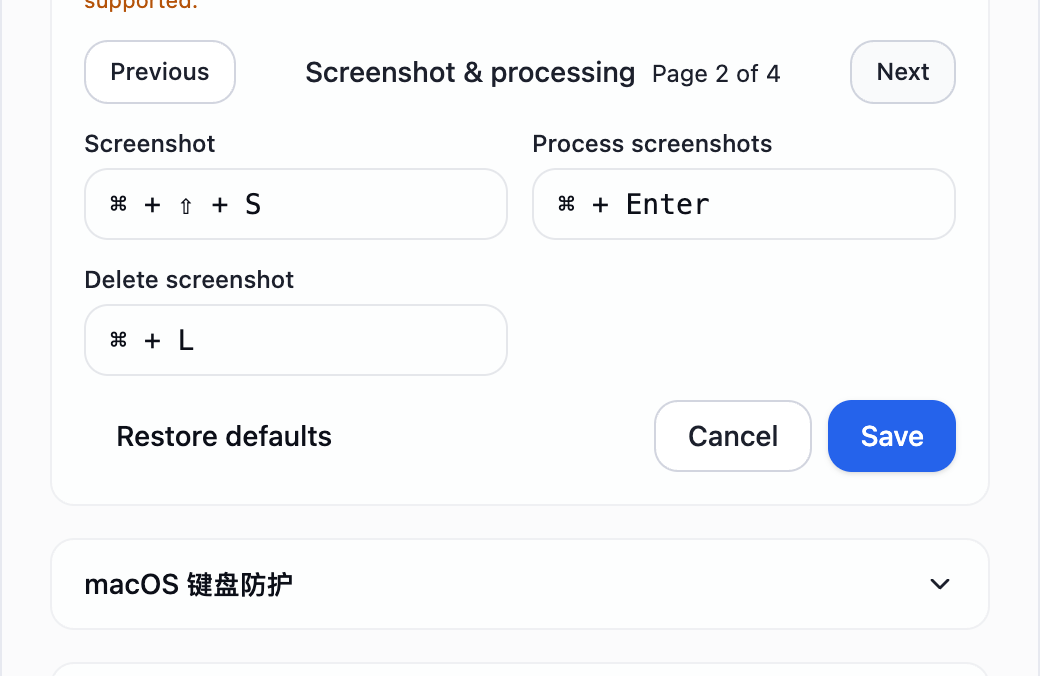
Saving returns to the first group. Click Next again to review the edited capture key.
Closing the window does not replace saving. If saving is unavailable, check for duplicates, empty values or no changes.
7. Check the saved key and test it on your computer
Return to the capture group and confirm ⌘ + Shift + S. Close both settings windows, press the combination, and check that a screenshot appears.
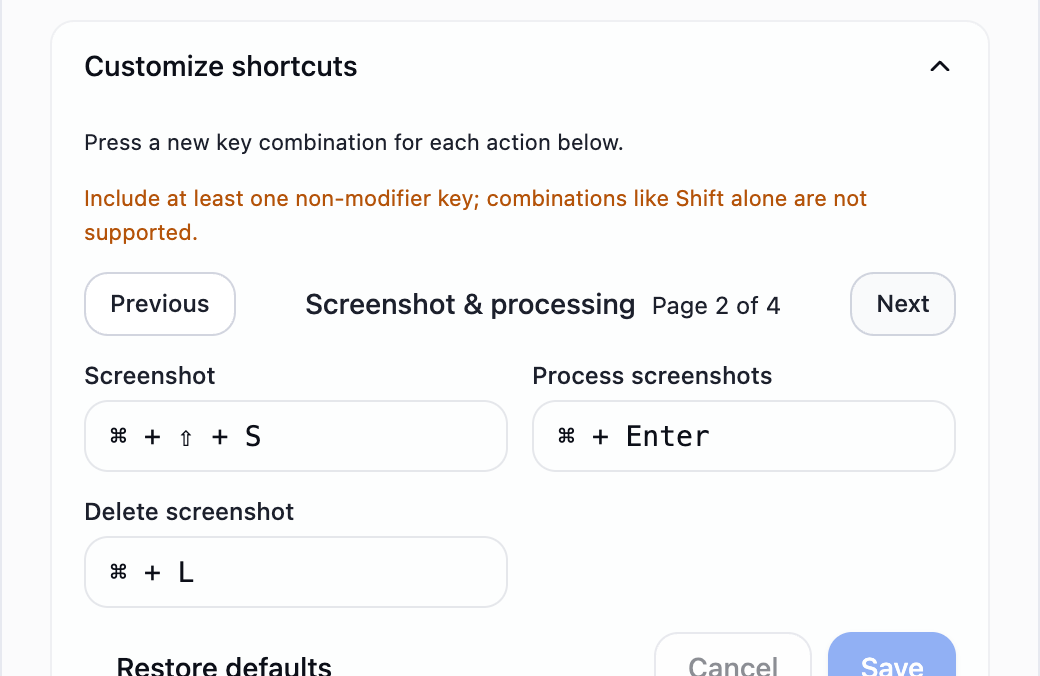
The key is saved. An actual capture confirms the operating system shortcut works in your environment.
This demo verifies the interface save flow. Test software conflicts locally. The section also offers a reset-to-defaults action.
Press the new combination, click Save and wait for confirmation. Retry a save error, or use Cancel to discard unsaved changes. Keyboard protection follows saved bindings. Test the same modifier side to confirm both the client action and the protection result.
Screenshot solution requirements
Use Extra solution requirements in Advanced Settings for a specific algorithm, code style or level of detail. Output language comes from the language setting. The model identifies the question type and uses the appropriate coding, SQL, math, aptitude or written-response format.
INTERACTIVE WALKTHROUGH
Try it: save solution requirements
Click the numbered markers to see what happens next in the client, or use the tutorial controls below.
Click the gear on the toolbar
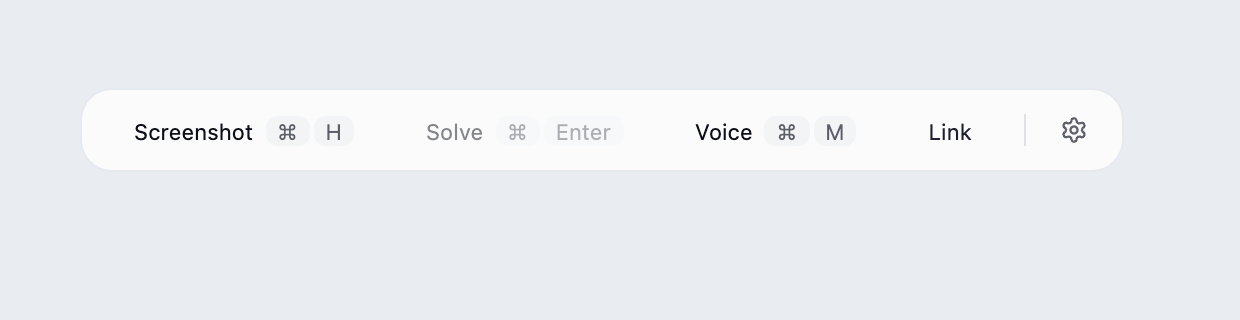
Find the desktop client's floating toolbar and click the gear at its right edge.
What you should see: The settings panel opens with languages, models, capture mode and links near the bottom.
These steps use fixed examples. Click the yellow image marker or use Next tutorial step below.
Show all illustrated steps
1. Click the gear on the toolbar
Find the desktop client's floating toolbar and click the gear at its right edge.
The settings panel opens with languages, models, capture mode and links near the bottom.
These steps use fixed examples. Click the yellow image marker or use Next tutorial step below.
2. Open Advanced Settings near the bottom
Look near the bottom of the settings panel and click Advanced Settings, alongside Knowledge Base and Voice Settings.
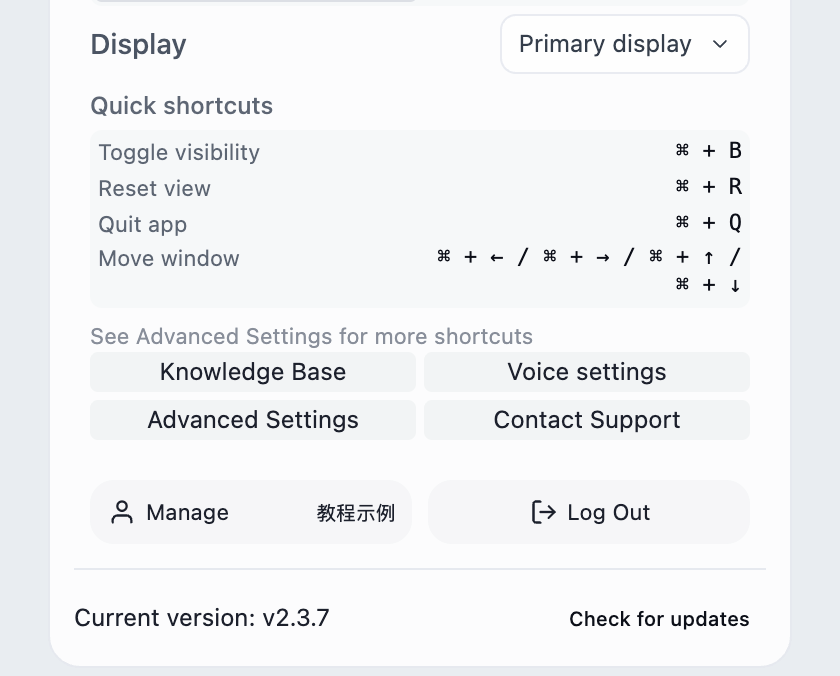
The advanced window opens. Click a section heading to expand it; scroll inside the window to find lower sections.
The image focuses on the entry buttons. Opening the window does not change a setting.
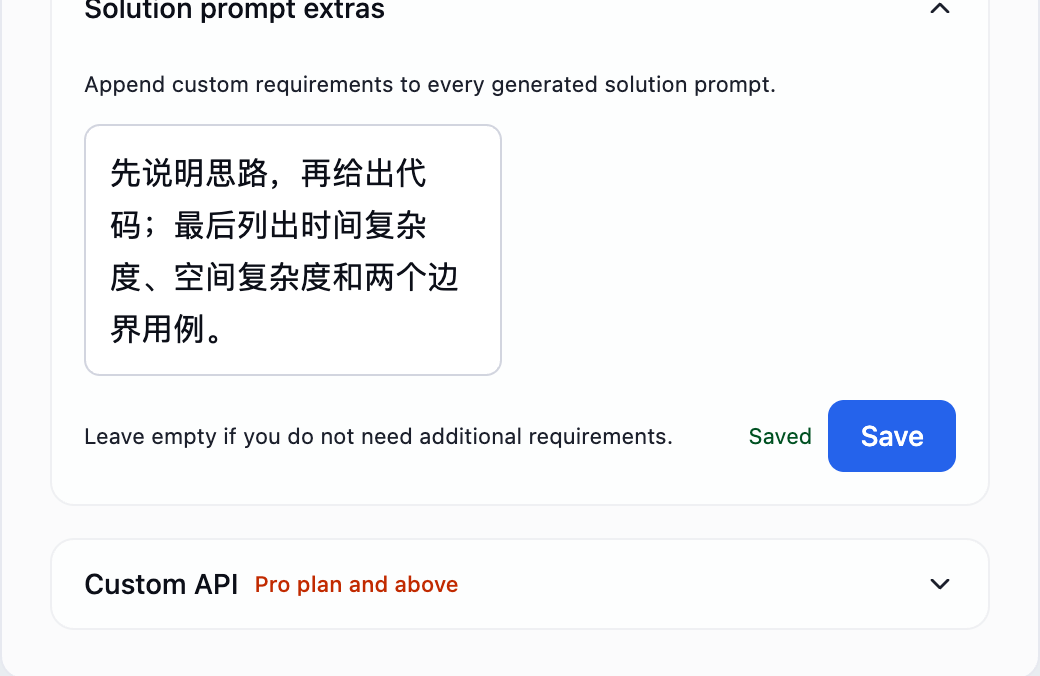
3. Expand Solution Extra Requirements
Scroll inside Advanced Settings and click the solution requirements heading.
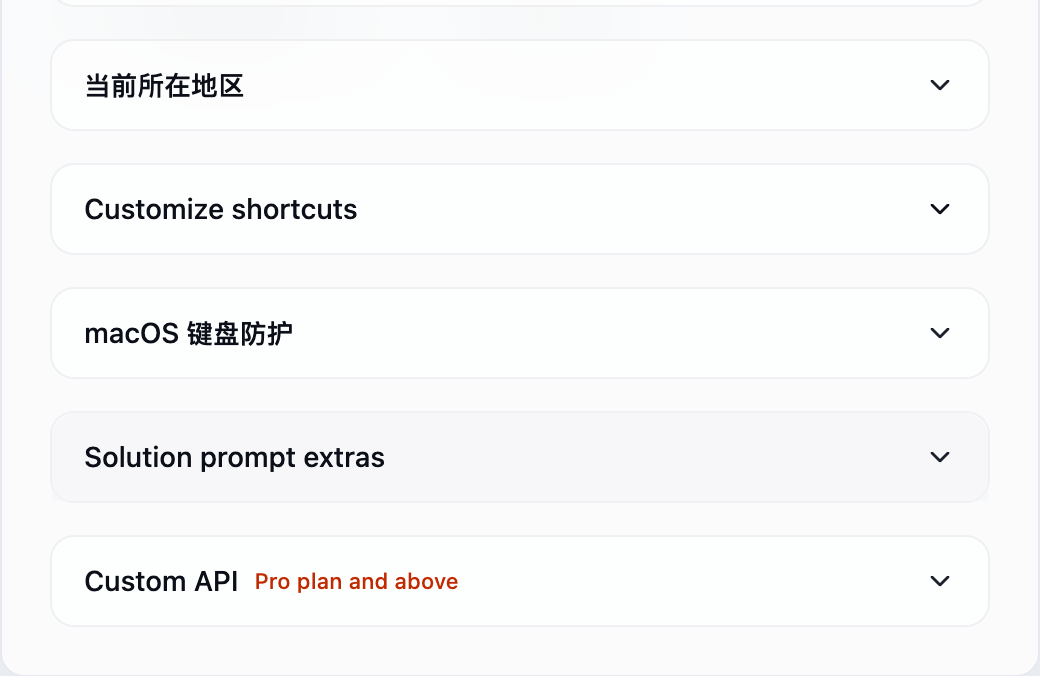
A multiline field and a separate Save button appear.
Voice answer requirements belong in Voice Settings; the two are configured separately.
4. Enter an instruction you can check in the output
Click the field and request a clear format. The Chinese example asks for the approach, code, time and space complexity, and two boundary cases.
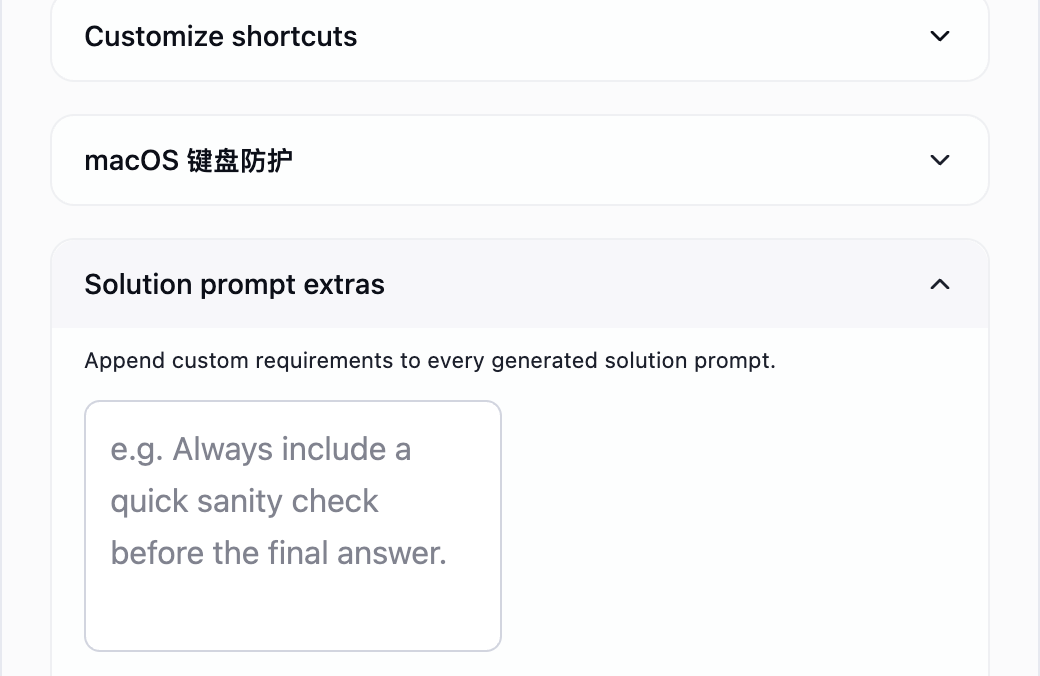
The text appears in the field but still needs to be saved.
Choose programming language in basic settings. The screenshot determines the question type and required solution format.
5. Click Save below the text field
Review the text and click Save at the bottom right of this section.
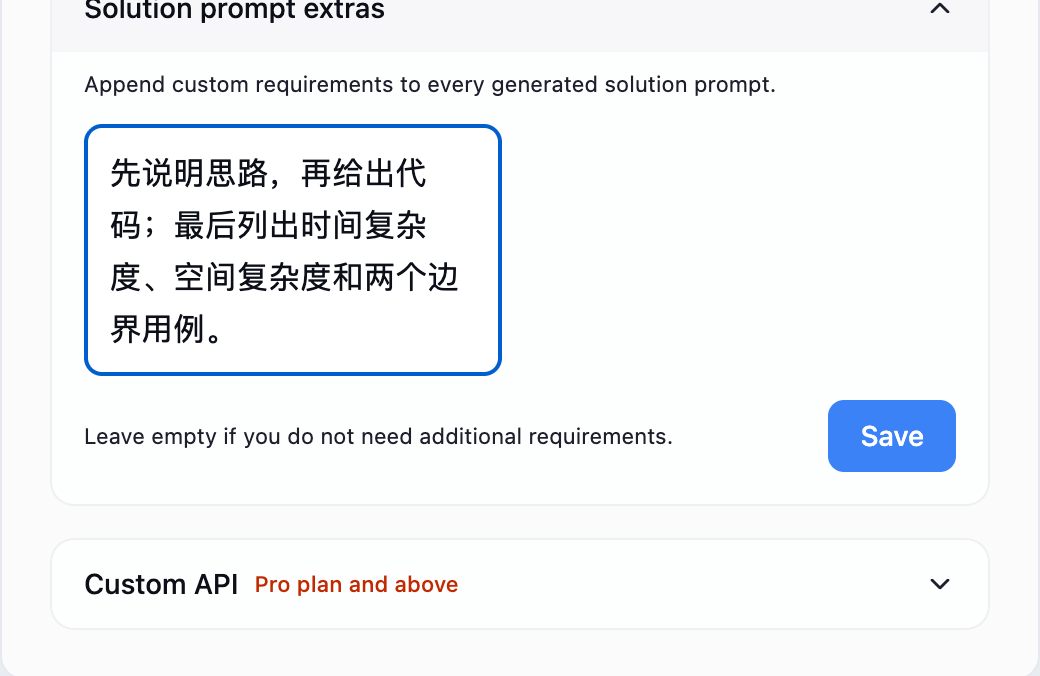
A Saved message appears beside the button.
Retry if saving fails. To remove the requirement, clear the field and save again.
6. Confirm Saved, then generate a new solution
Close the window, capture a practice question and click Solve. Check whether the new answer includes the requested complexity analysis and boundary cases.
A newly generated solution lets you evaluate the instruction.
Changing a setting does not rewrite an existing answer. An unchanged old answer does not indicate a save failure.
For the same question, capture test errors, expected output or missing conditions and click Continue this question (⌘ / Ctrl + D). For a different question, capture it and click Solve (⌘ / Ctrl + Enter); resetting first is optional.
Voice answer requirements
Open Voice settings on the right of the voice panel to add answer requirements. These are saved separately from screenshot requirements, so you can set an interview perspective or emphasis.
Concise answer shortens voice Q&A into content you can say directly. Voice solve produces the solution format needed by the question and is unaffected by that toggle.
Suggestions
- Rehearse changed shortcuts on the computer and software you will use.
- Keep requirements short and specific. Avoid asking for both minimal length and every possible detail.
- Adjust content width and height in Advanced Settings for more reading space. Use zoom shortcuts separately to change text size.