First, learn the shortcut keys, then configure the basics below. Numbered tutorial markers show the steps; operate the actual client using its buttons and your keyboard.
Configure the basics first
The floating toolbar provides quick access to screenshot, voice, and settings.
INTERACTIVE WALKTHROUGH
Try it: configure basic settings
Click the numbered markers to see what happens next in the client, or use the tutorial controls below.
Click the gear on the toolbar
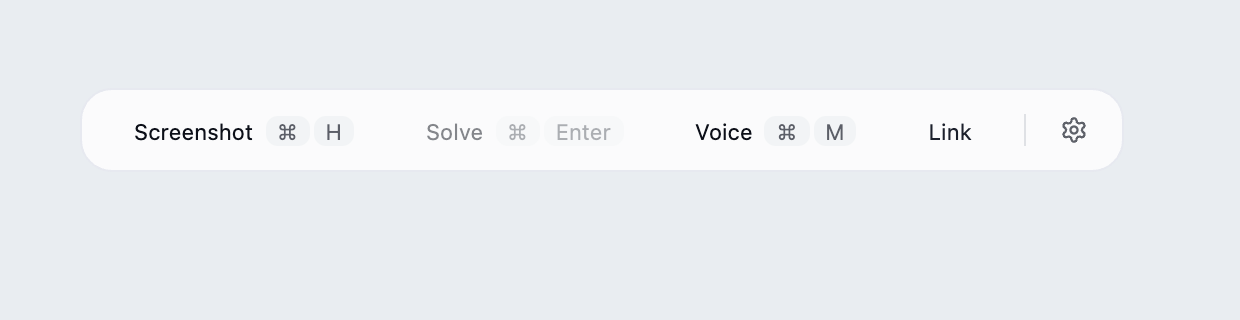
Find the desktop client's floating toolbar and click the gear at its right edge.
What you should see: The settings panel opens with languages, models, capture mode and links near the bottom.
These steps use fixed examples. Click the yellow image marker or use Next tutorial step below.
Show all illustrated steps
1. Click the gear on the toolbar
Find the desktop client's floating toolbar and click the gear at its right edge.
The settings panel opens with languages, models, capture mode and links near the bottom.
These steps use fixed examples. Click the yellow image marker or use Next tutorial step below.
2. Open Language Settings first
Click Language Settings near the top. Programming language has its own selector in the row above.
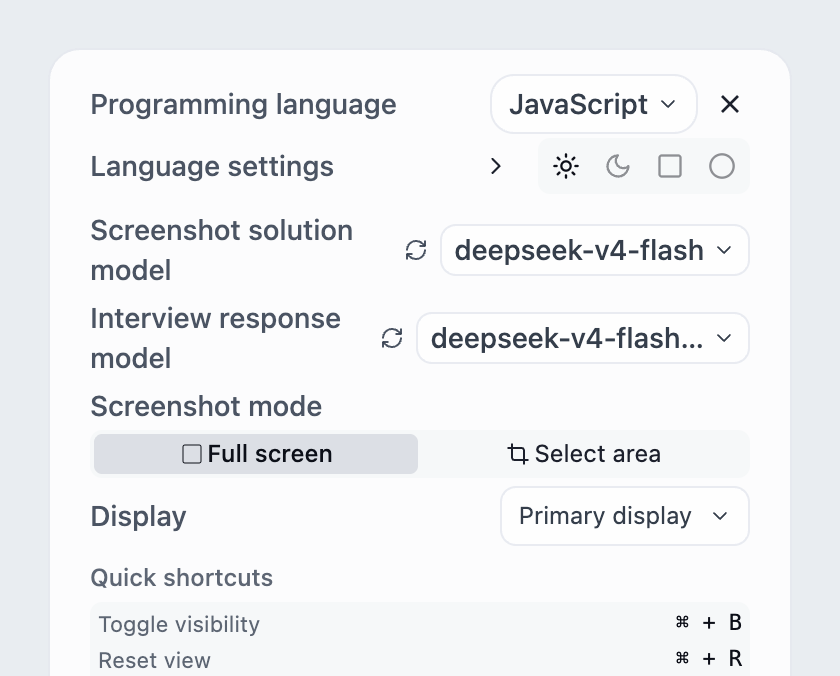
A window lets you set interface and response languages separately.
Interface language changes labels; response language controls the AI answer. The transcription model automatically detects the language of incoming speech.
3. Choose languages, then close the window
Choose your interface language and Chinese or English for answers. Click × at the top right when finished.
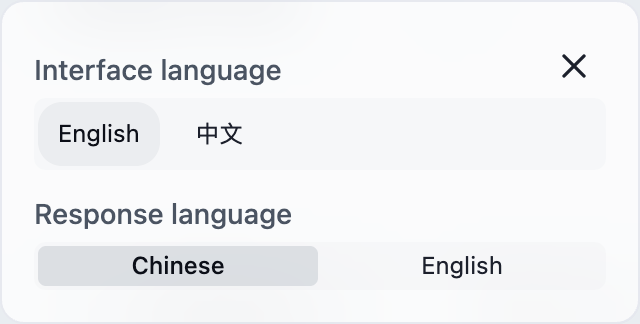
You return to settings. Changes are saved as you make them.
Set interface and response languages independently to suit your preferences.
4. Choose a solution model; screenshots determine the question type
Open Screenshot solution model and select an available model. Programming, math, SQL and other questions share one screenshot-solving entry, with output determined by the question.
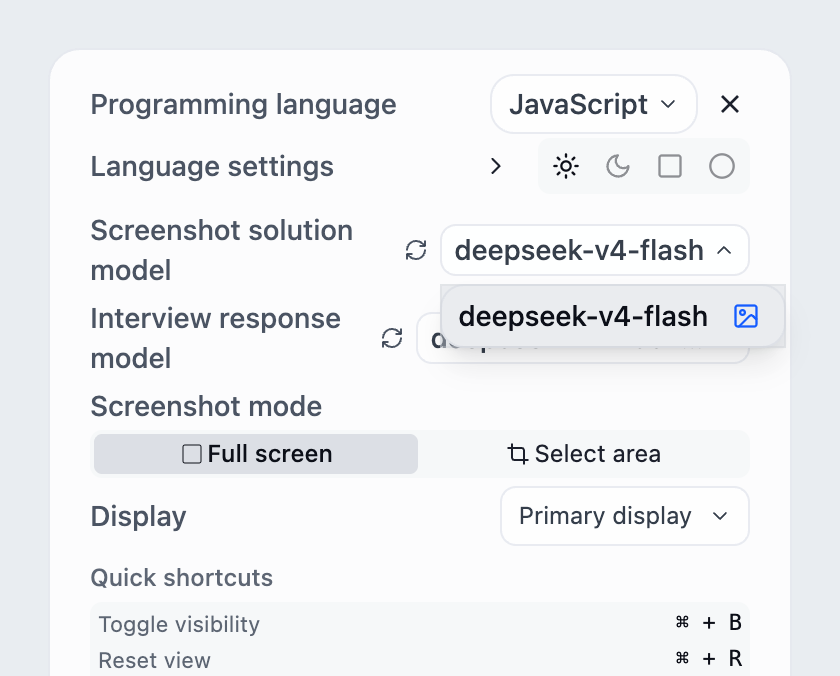
The selector displays your model. The question determines the required output format.
Choose programming language separately at the top. Screenshot solutions and interview answers have separate model selectors. Image-capable models can also switch between image and text input.
5. Choose full-screen or area capture
Under Screenshot Mode, select area capture. The next capture requires dragging a rectangle around the question. Choose full-screen to capture the screen directly.
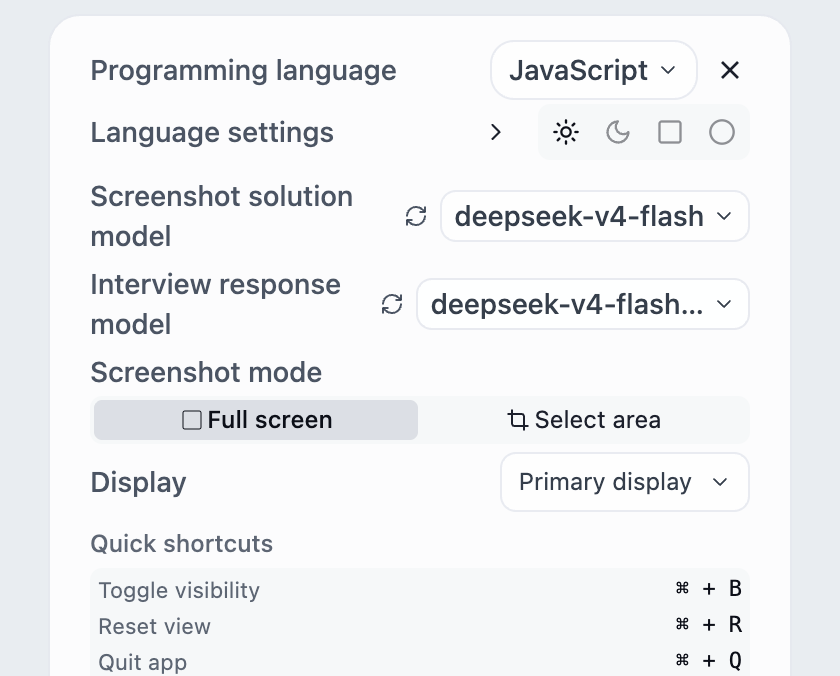
Area capture is selected. No screenshot has been taken yet.
For multiple monitors, also check the display selector. Follow the separate screenshot-solving guide to capture and solve.
6. Review your configuration and run a practice session
Check programming language, both model selectors, capture mode and display. Close settings and try a capture and a voice question.
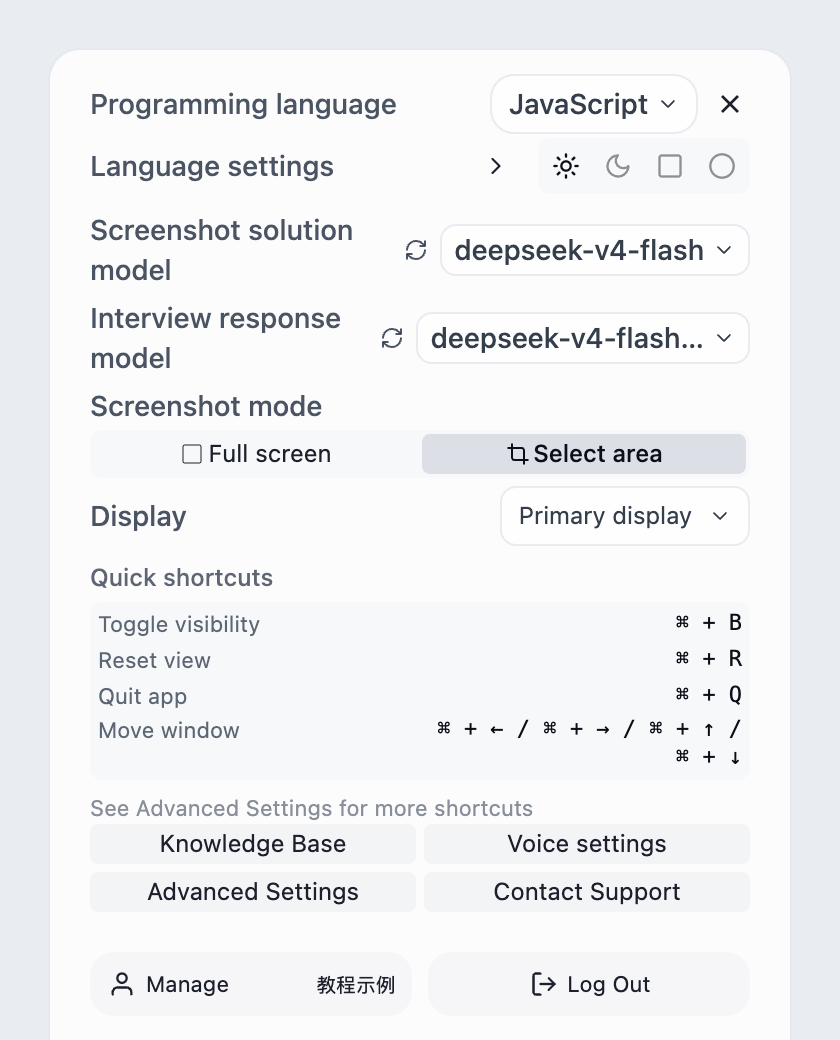
The current input and output options are visible in settings.
Voice minutes depend on your plan. Check audio permissions and confirm that incoming audio produces a transcript before using voice answers.
Language and model
- Programming language: affects the output language for coding questions.
- Answer language: choose Chinese or English independently of the interface language and display translation.
- Screenshot-solving model: reads the question and produces its solution.
- Interview-answer model: handles voice answers and voice problem solving, independently of the screenshot model.
Capture area and display
Choose Full-screen screenshot or Partial screenshot. With multiple monitors, check that Display matches the screen containing the question. Solutions follow the question's requirements for code, SQL, calculations or written answers.
Content dimensions
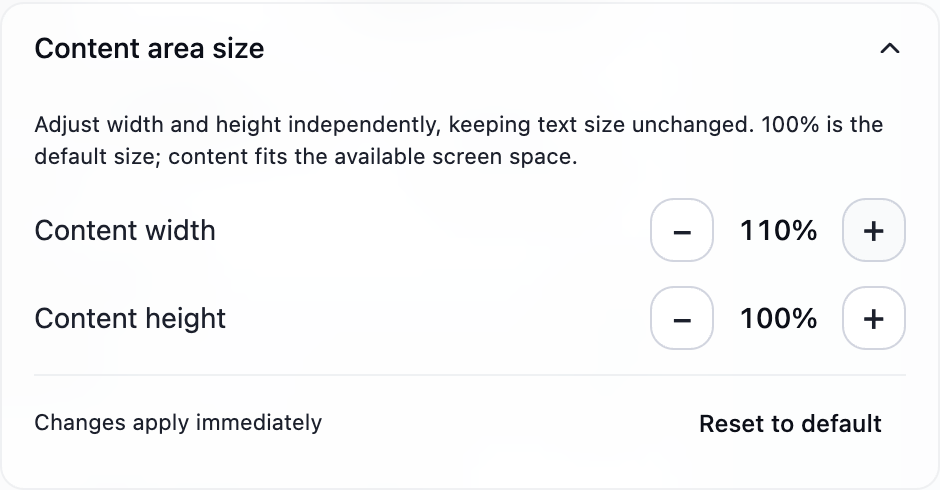
Open Advanced Settings → Content area size and adjust Content width and Content height separately. Changes save automatically and take effect immediately while keeping text size unchanged. Reset restores both to 100%. Content dimensions are separate from overall zoom.
Width supports 70%–160% and height supports 50%–140%; the actual panel also fits available screen space. Configure the voice-answer scroll distance separately in Voice settings.
Common entries
The bottom of the settings panel provides common entries:
- Knowledge base: upload and manage materials.
- Voice settings: configure your role, audio scenario, answer instructions, hotwords, display translation and scroll distance.
- Advanced settings: configure shortcuts, API and keyboard protection.
- Contact support: get help quickly when you encounter problems.
Choose your first practice
Solve from screenshots
Capture a question, generate a solution and turn through the answer.
Voice questions and answers
Configure voice, then practice transcription, answer generation, paging and translation.
Dual-device link
Generate a desktop QR code, use the phone controls and disconnect when finished.