Add local materials and a resume
Open Settings → Knowledge Base and click Select files for reference documents, or Select folder to add documents from a folder. Check the Selected list, click Start analysis, and wait for indexing to finish. Then open Manage documents to check the result. Choosing files alone does not start processing. Follow the format, quantity and credit limits shown in the window.
For a resume, use Select resume, choose one resume file, and click Process resume. Candidates choose their own resume. In interviewer mode, the button reads Select candidate resume for the candidate's resume. A successfully processed new resume becomes the active resume while older resumes are retained. Switch resumes in Manage documents; only one resume can be enabled at a time.
Documents and indexes are stored on this device. Document processing and retrieval can still use model assistance.
INTERACTIVE WALKTHROUGH
Try it: add, transfer and use your local Knowledge Base
Click the numbered markers to see what happens next in the client, or use the tutorial controls below.
Click the gear on the floating toolbar
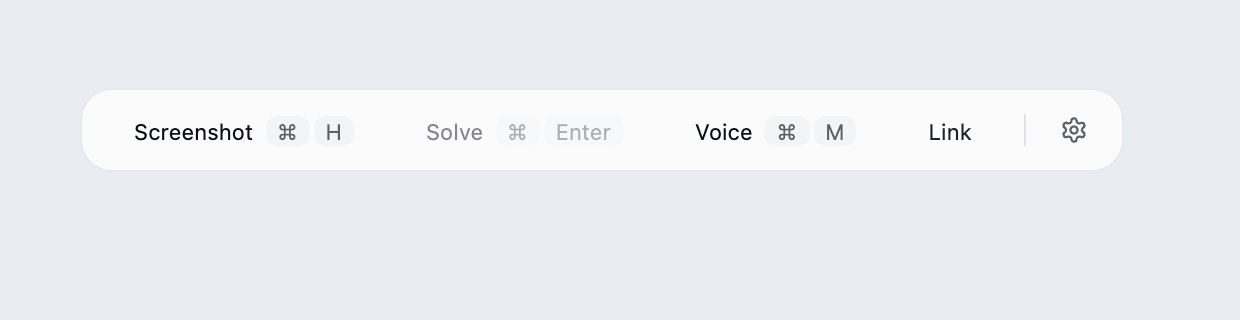
Click the gear on the right of the client toolbar to open Settings.
What you should see: Settings opens with a Knowledge Base entry near the bottom.
The demonstration uses example materials without reading real documents.
Show all illustrated steps
1. Click the gear on the floating toolbar
Click the gear on the right of the client toolbar to open Settings.
Settings opens with a Knowledge Base entry near the bottom.
The demonstration uses example materials without reading real documents.
2. Click Knowledge Base near the bottom of Settings
Find and click Knowledge Base. The image focuses on the entry near the bottom of Settings.
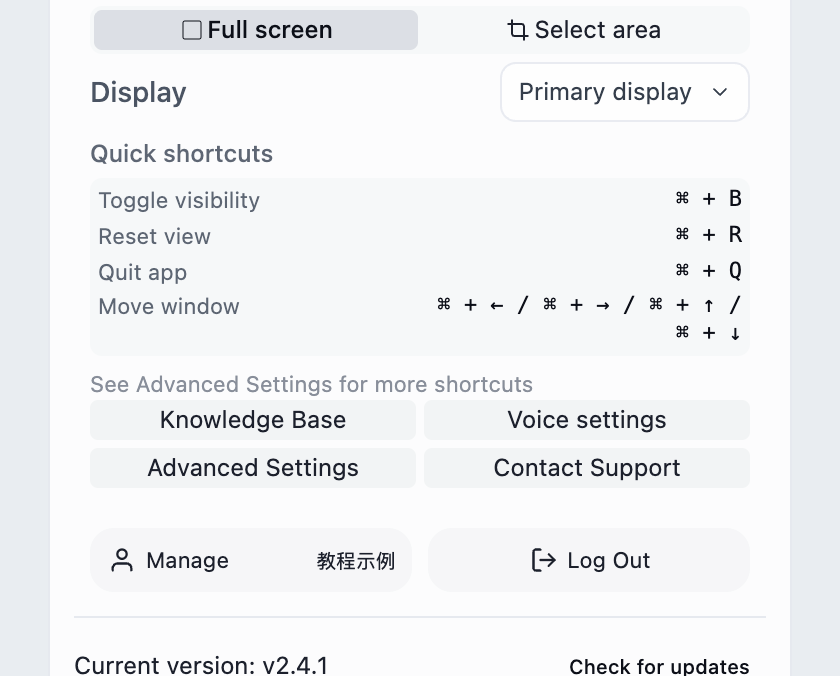
The window shows local document counts, the reading shortcut switch and document processing controls.
Select files and Select folder add ordinary references. Use the separate Select resume control for resumes.
3. Click Select files and choose an actual document
Click Select files, choose your document in the system picker and confirm Open. This example uses Project experience.md.
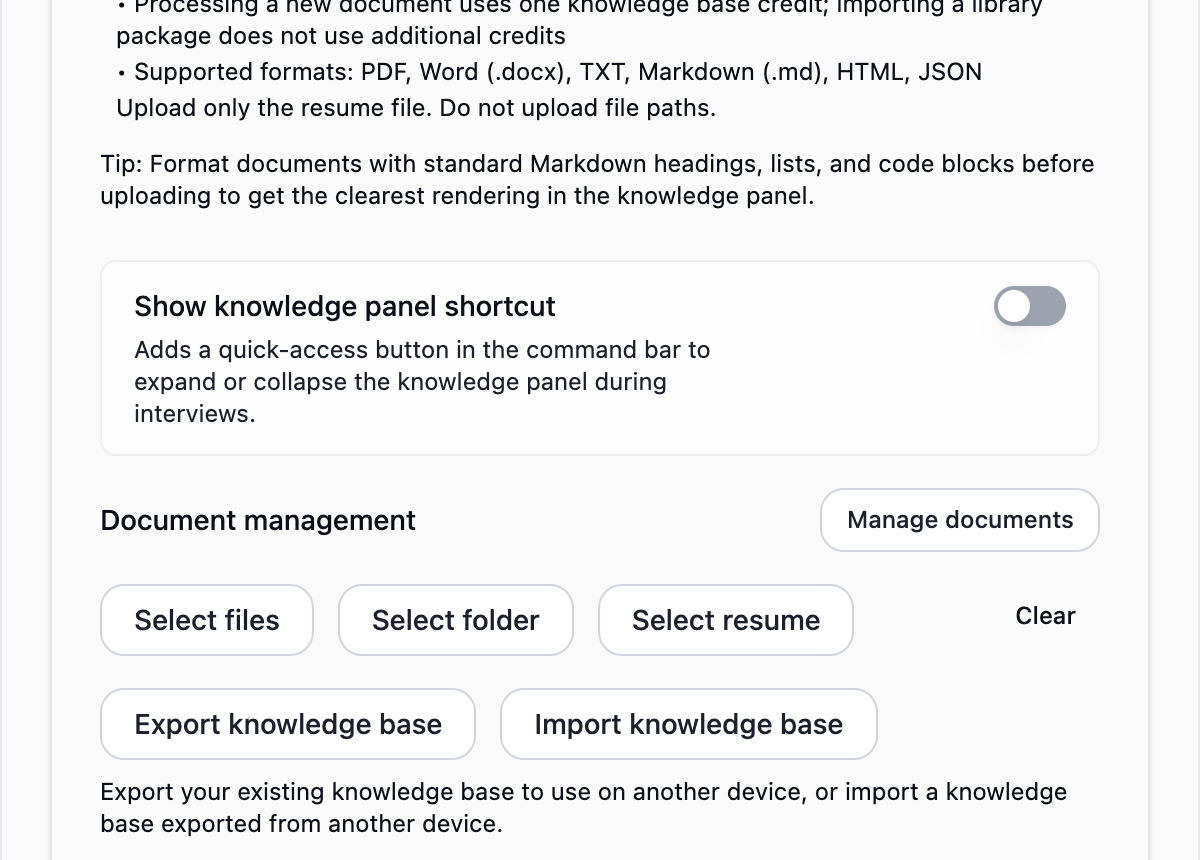
A Selected list and the Start analysis button appear in the Knowledge Base window.
Use Select folder for a folder of materials. File selection alone does not start processing. Follow the format and quantity limits shown in the window.
4. Check the selected file, then click Start analysis
Check Project experience.md in the Selected list, then click Start analysis below it.
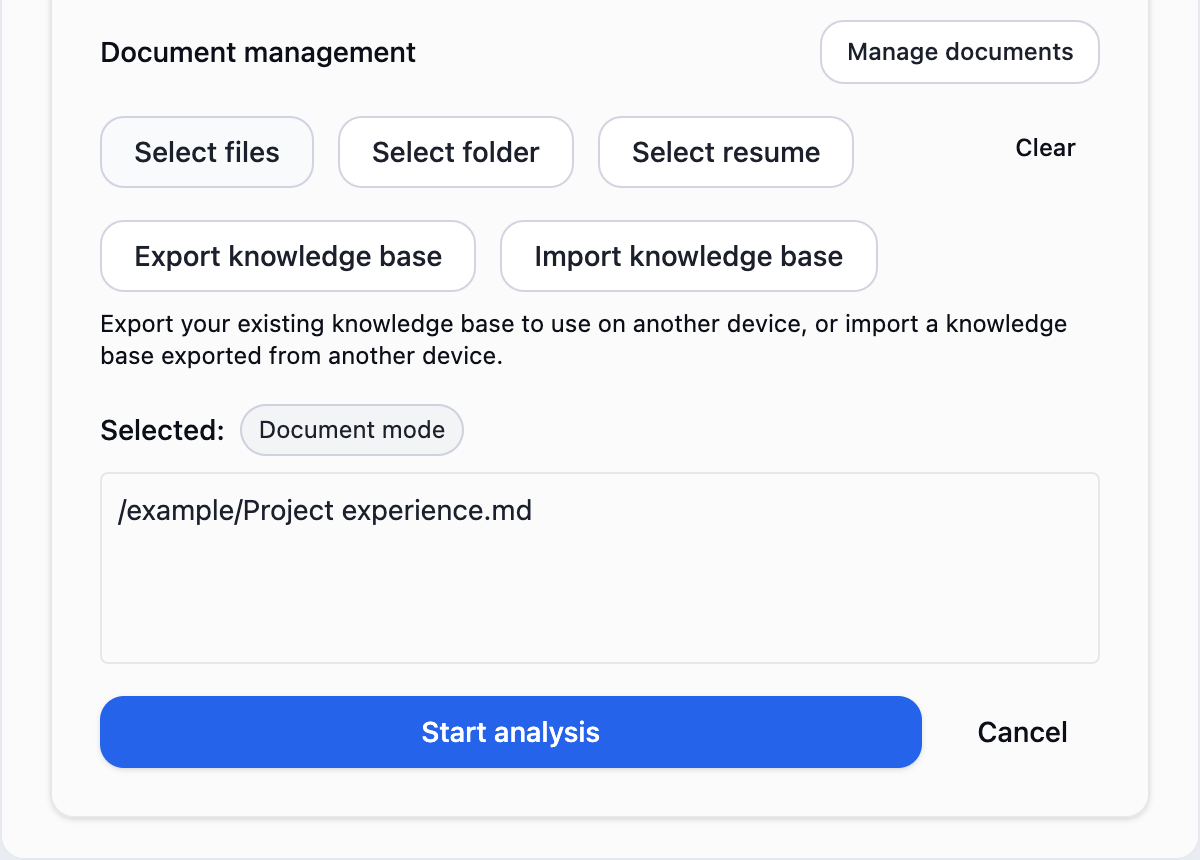
Processing progress appears and repeated submission is disabled while busy.
If the button is missing, check that file selection was confirmed and the list is not empty, then look further down the window.
5. Wait for analysis and check the result
Wait for processing to finish. There is no need to select the file again or submit another analysis.
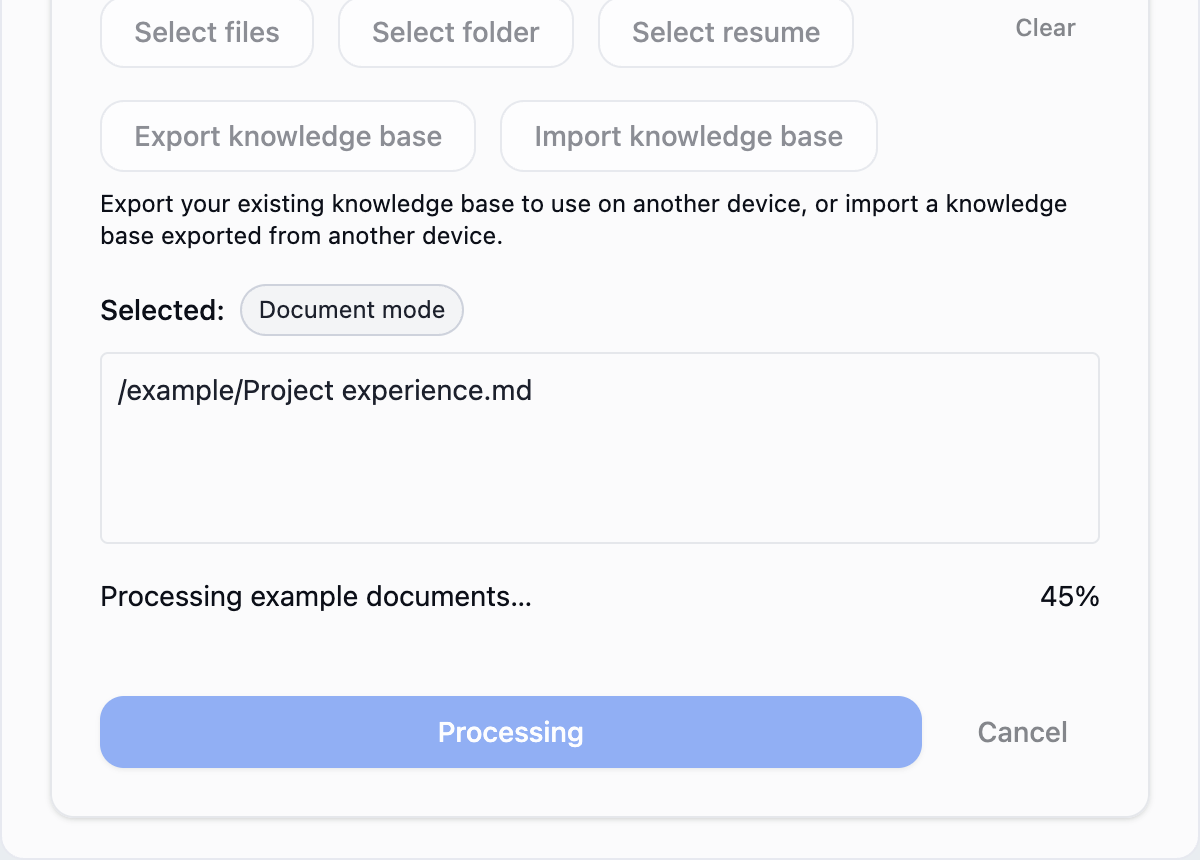
The indexing summary appears and successfully processed materials are added to the local library.
Check skipped or failed files reported in the result. A progress bar alone does not confirm success.
6. Confirm indexing, then add a resume
Check the success count in the indexing summary. After processing this reference, click Select resume.
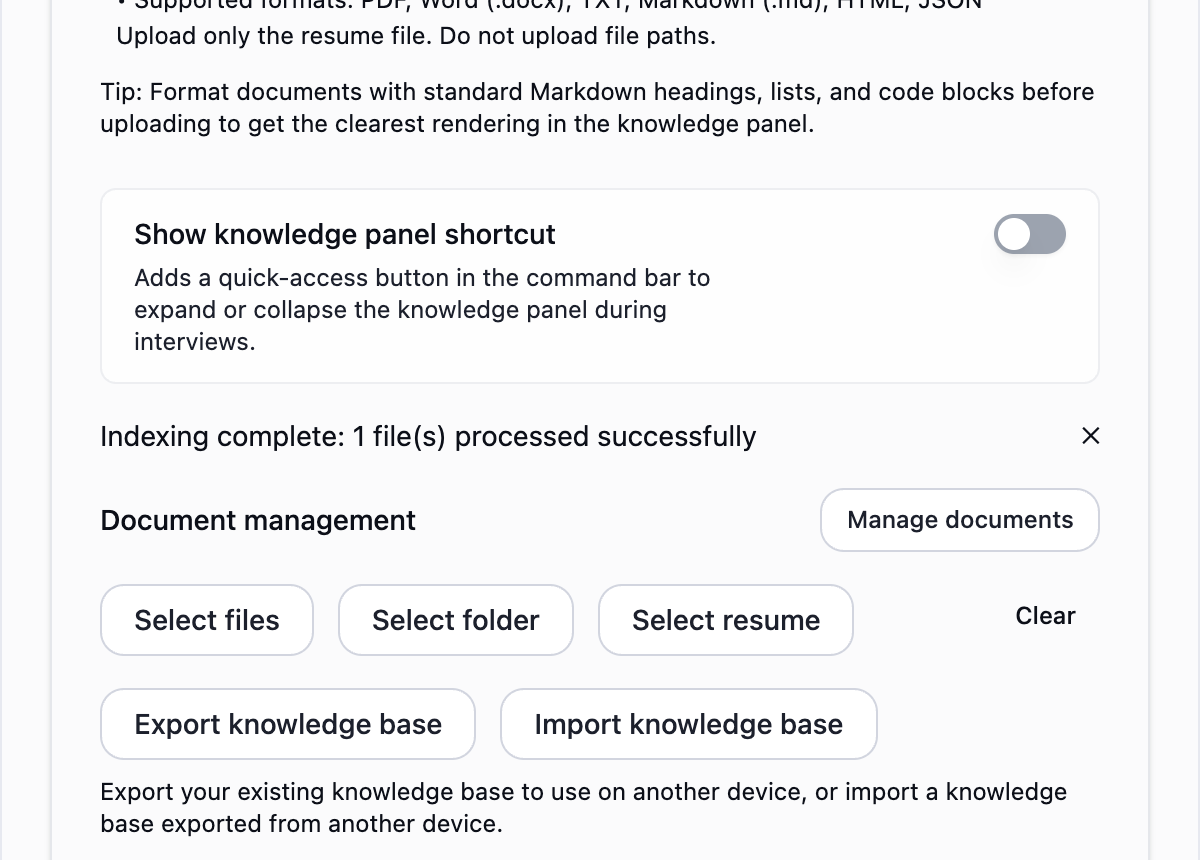
The reference is stored locally. Next, use the dedicated resume control.
Document processing and retrieval can still use model assistance. Local storage does not remove model requests when generating answers.
7. Choose one file with the dedicated resume control
Choose a resume file in the system picker and confirm Open. This example uses Candidate resume.md.
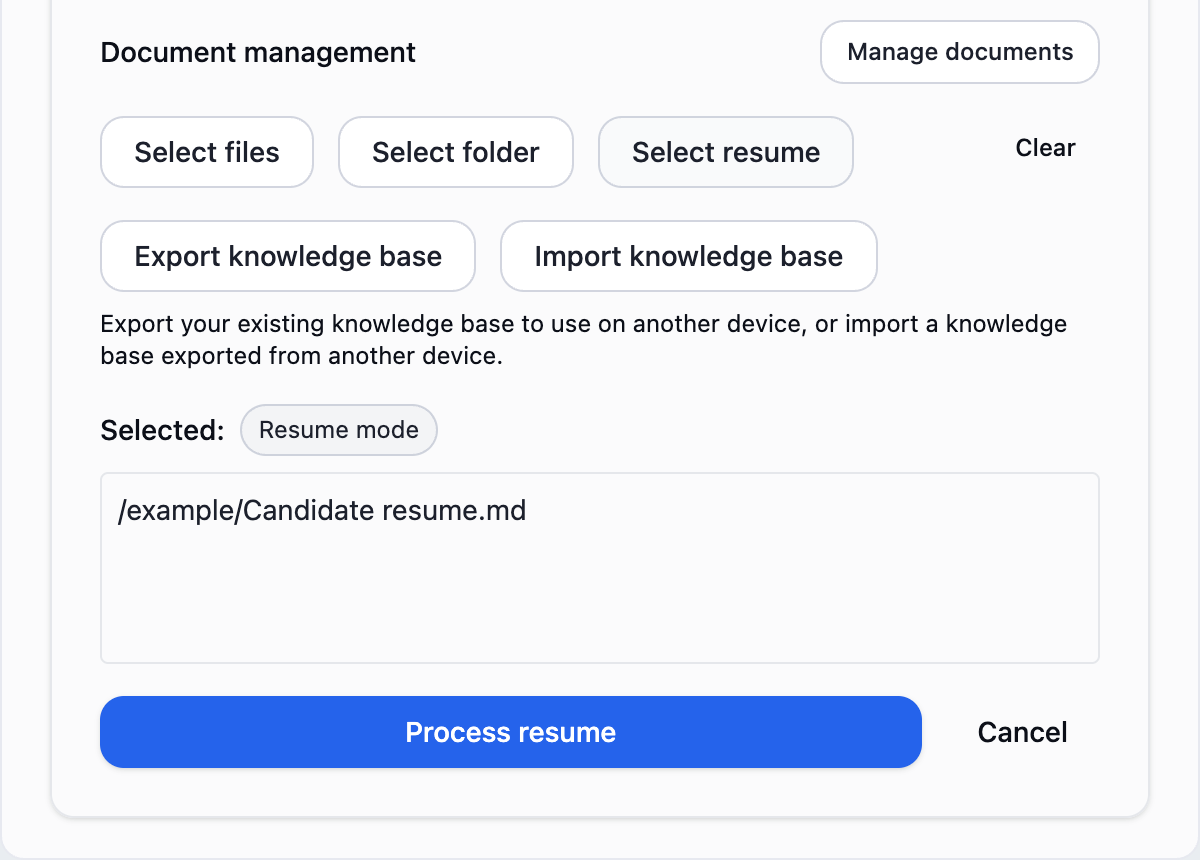
The Selected list shows Resume mode and the button changes to Process resume.
Candidates choose their own resume. In interviewer mode, use Select candidate resume. Choose one resume file at a time.
8. Check the resume, then click Process resume
Check the selected resume file, click Process resume, and wait for the success summary.
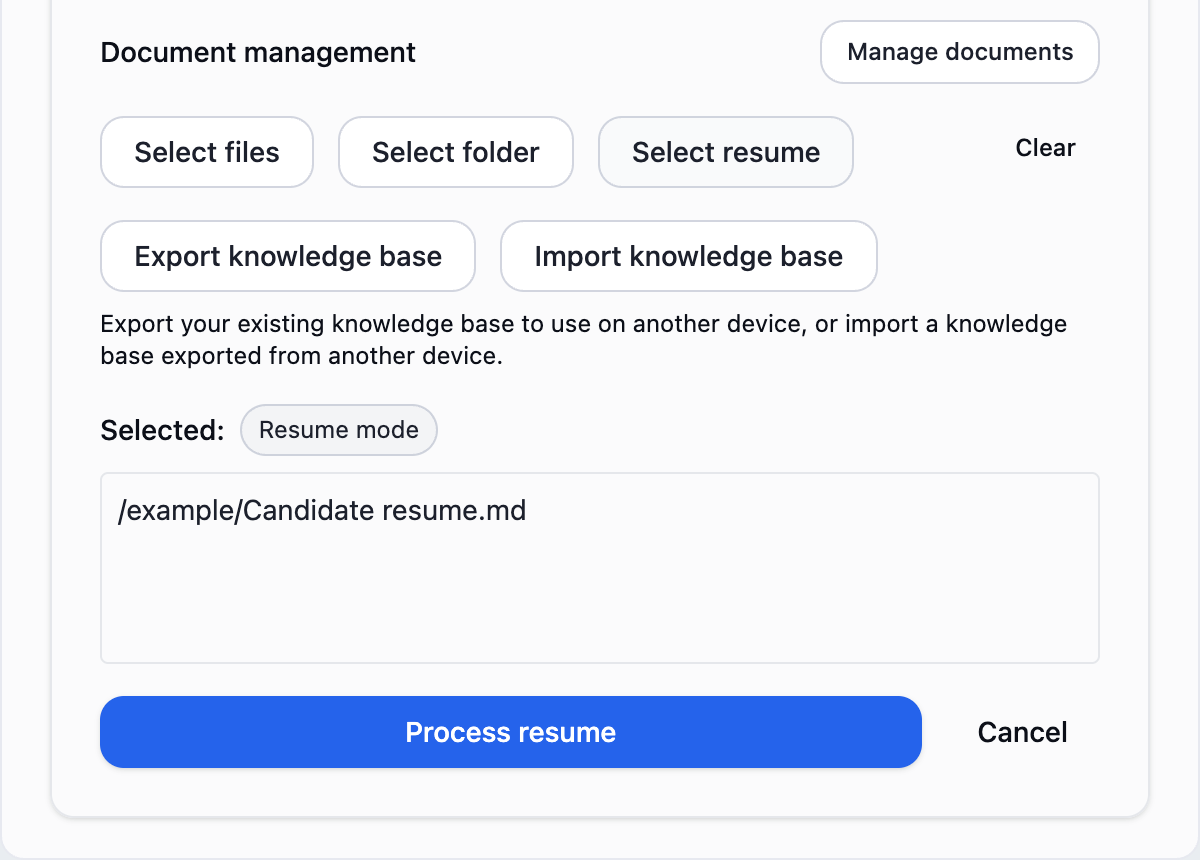
The new resume becomes active after successful processing. Older resumes remain in Manage documents.
Only one resume can be enabled at a time. Enable an older resume with its right-hand switch in Manage documents to switch back.
9. Click Manage documents to check local materials
Confirm the resume processed successfully, then click Manage documents.
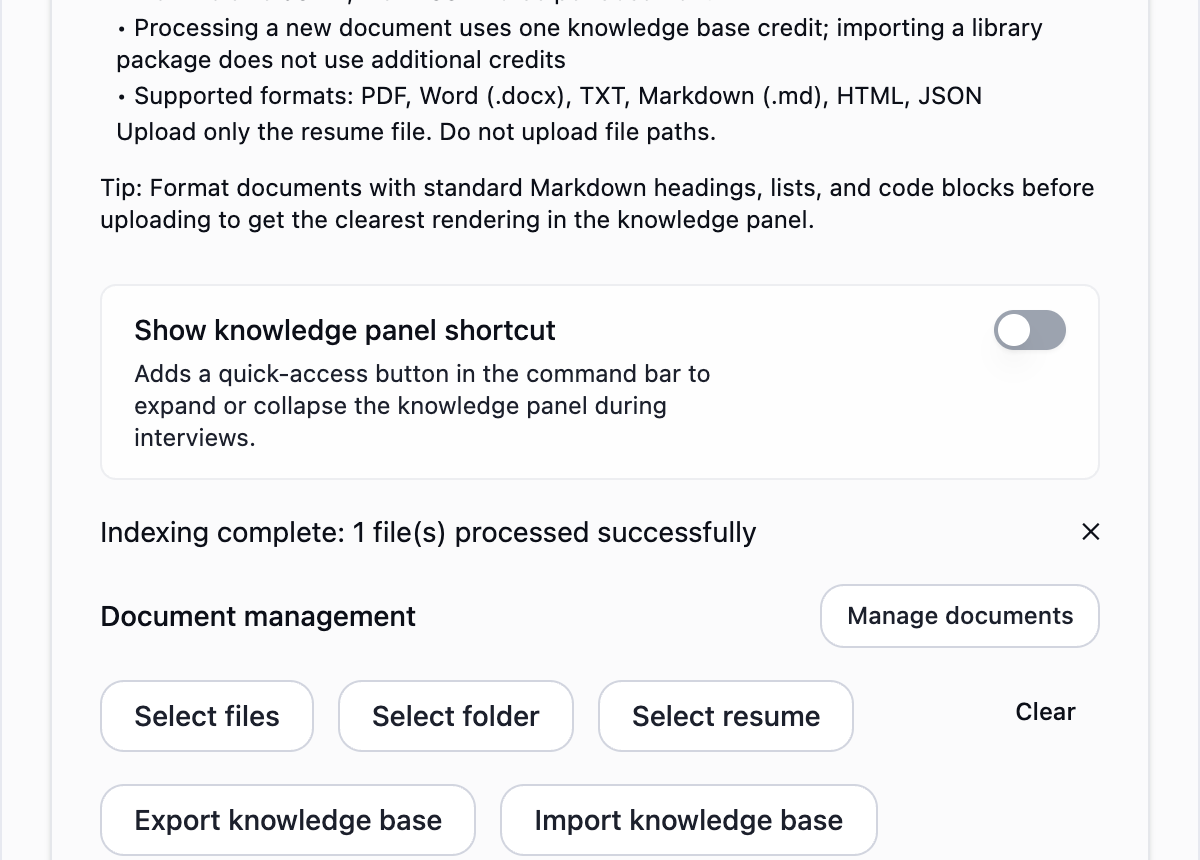
The list shows names, enabled status, left-hand checkboxes and right-hand switches.
The checkbox on the left selects documents for Delete selected. The switch on the right controls knowledge-base use.
10. Enable references with the right-hand switch
Find Project experience.md, turn on its right-hand switch, and check Enabled. Then click Cancel to return to Knowledge Base.
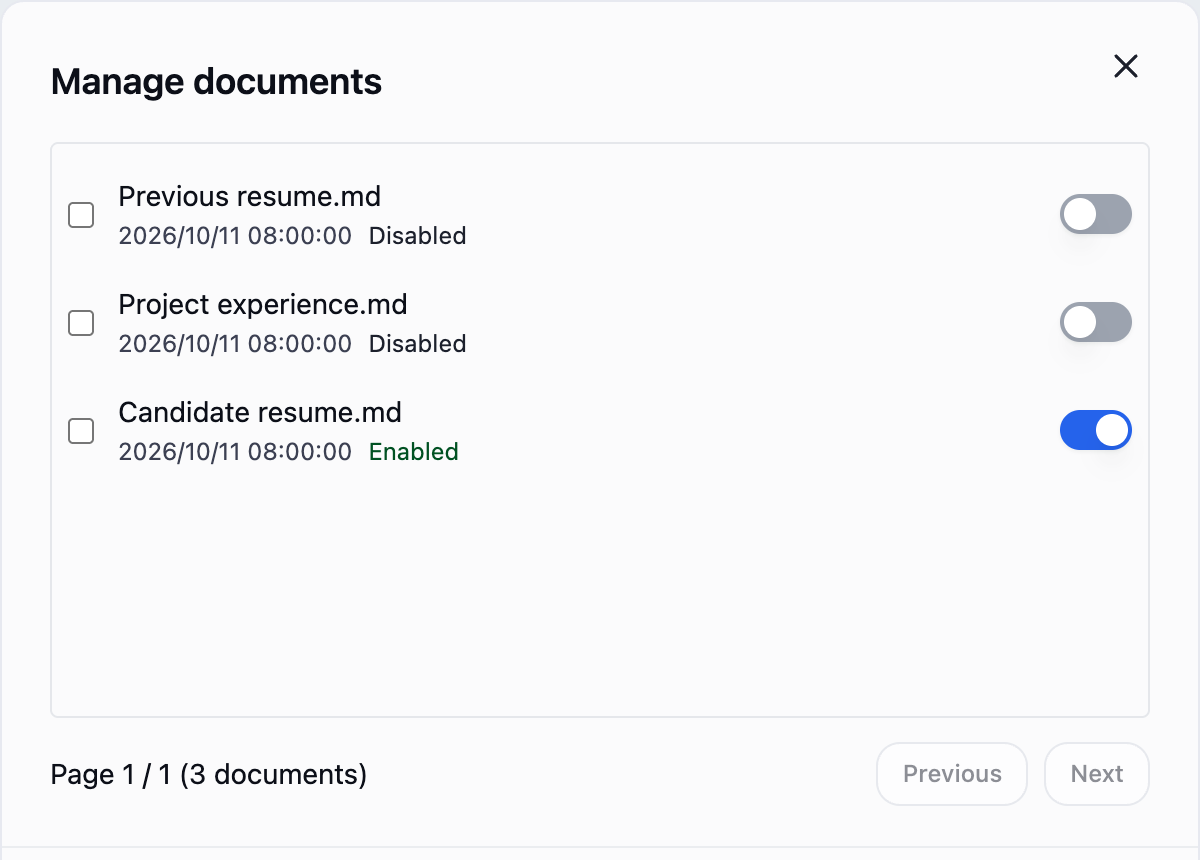
Enabled references are available for reading and voice retrieval. A candidate's own resume is included when Knowledge Base is on; interviewers use the selected candidate resume even when it is off.
Disabling retains the document and index. A recording keeps its starting materials; enabling, disabling, deleting or switching resumes here applies to the next session.
11. Click Export knowledge base to save the whole library
Click Export knowledge base in the Knowledge Base window, choose a save location and confirm.
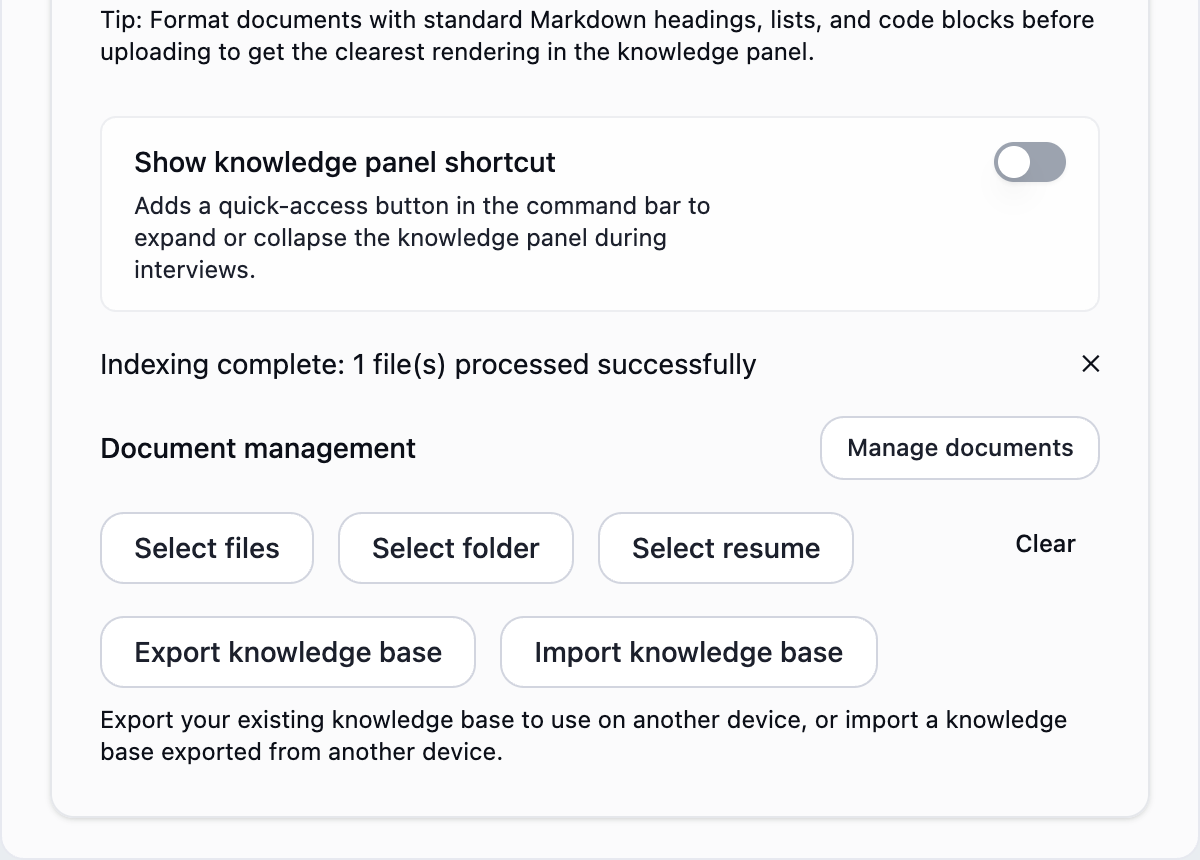
A .gankkb package contains all library documents and indexes, including disabled documents.
Export your existing knowledge base to use on another device, or import a knowledge base exported from another device. Export includes the whole library, not just enabled materials.
12. Click Import knowledge base and choose a .gankkb package
Copy a package exported from another device, click Import knowledge base, then choose the .gankkb file and confirm.
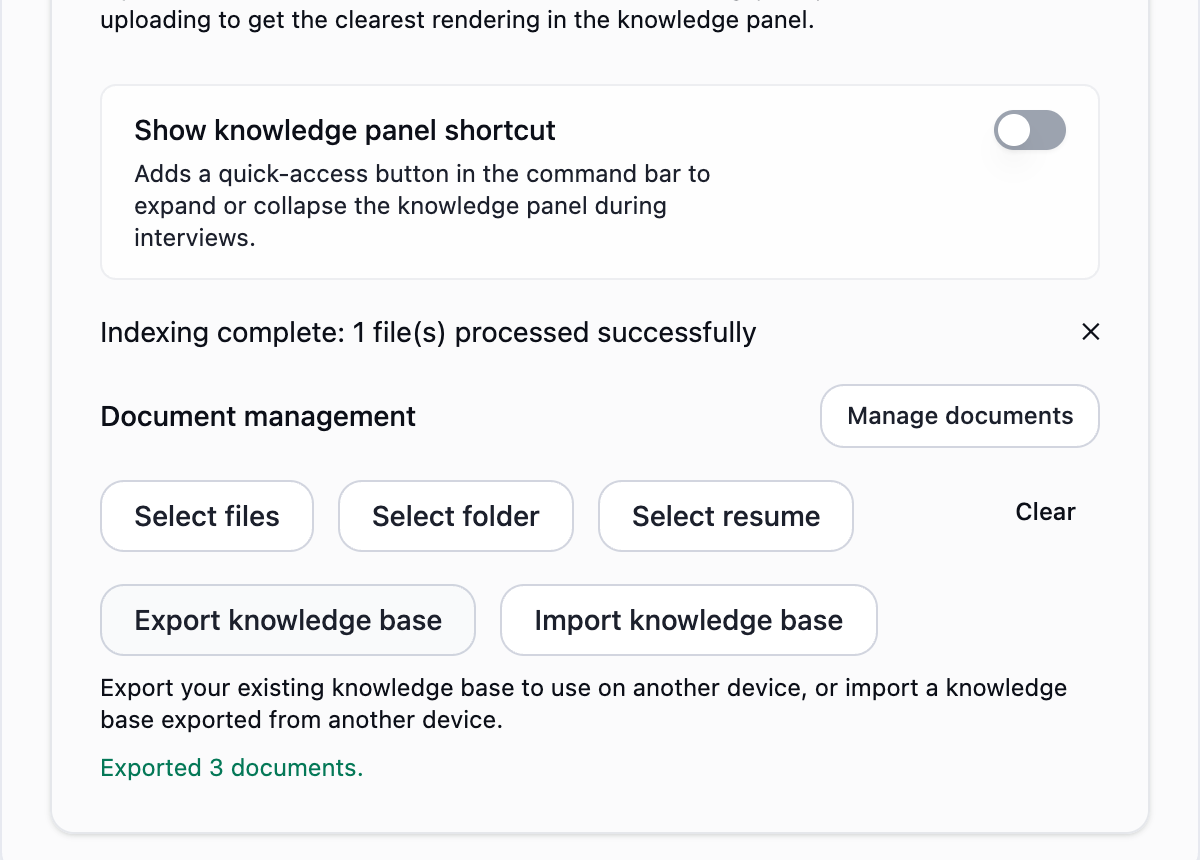
Documents and indexes merge into the existing local library without replacing it.
Duplicates with the same type (resume or ordinary document) and identical body text are skipped. Package import does not use additional document-processing credits.
13. Check import counts and enable new materials as needed
Check the imported and skipped counts. To use a new document, open Manage documents and enable it.
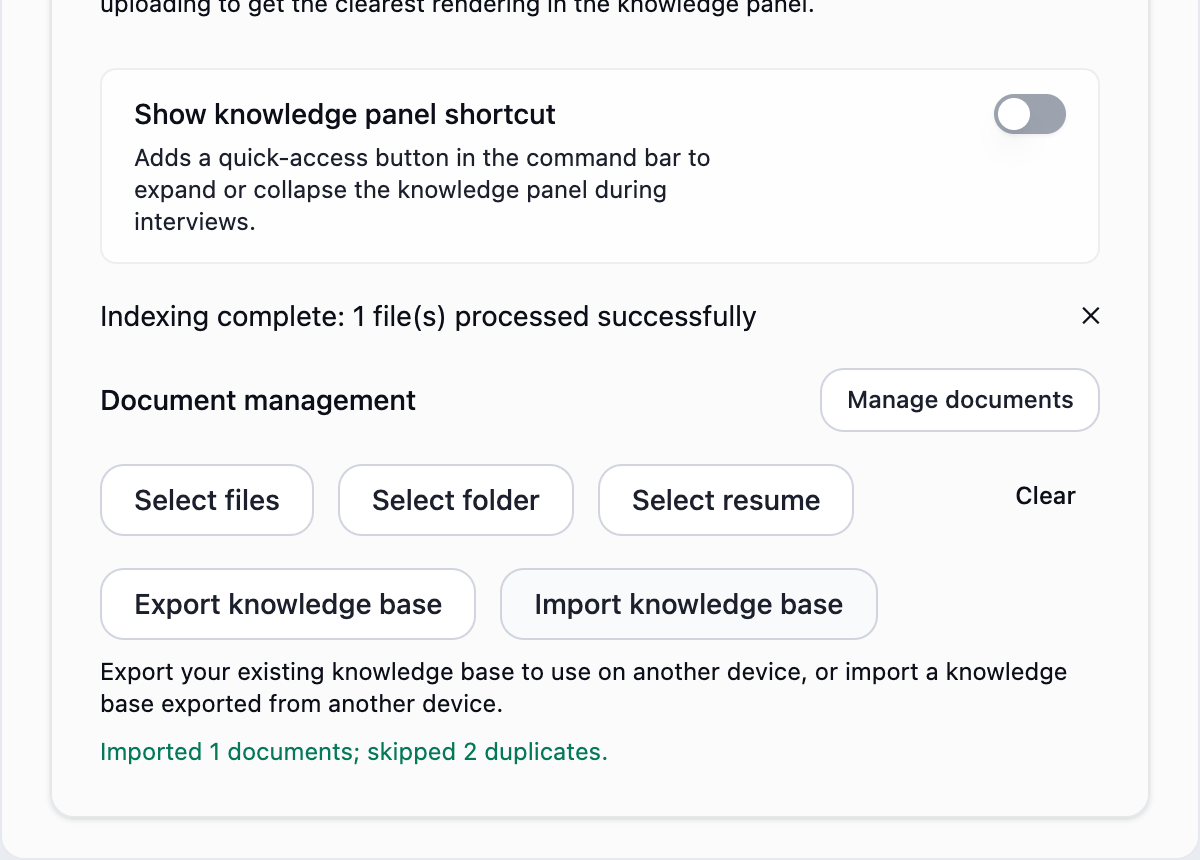
The local library retains existing documents and adds new materials without automatically changing the enabled selection.
An imported resume does not automatically replace the active resume. Enable it in Manage documents when you want to switch.
14. Enable Knowledge Base for voice answers
Close Knowledge Base. Before recording, confirm My role and Audio setup in Voice settings. Click Voice on the toolbar, then turn on Knowledge Base above the answers.
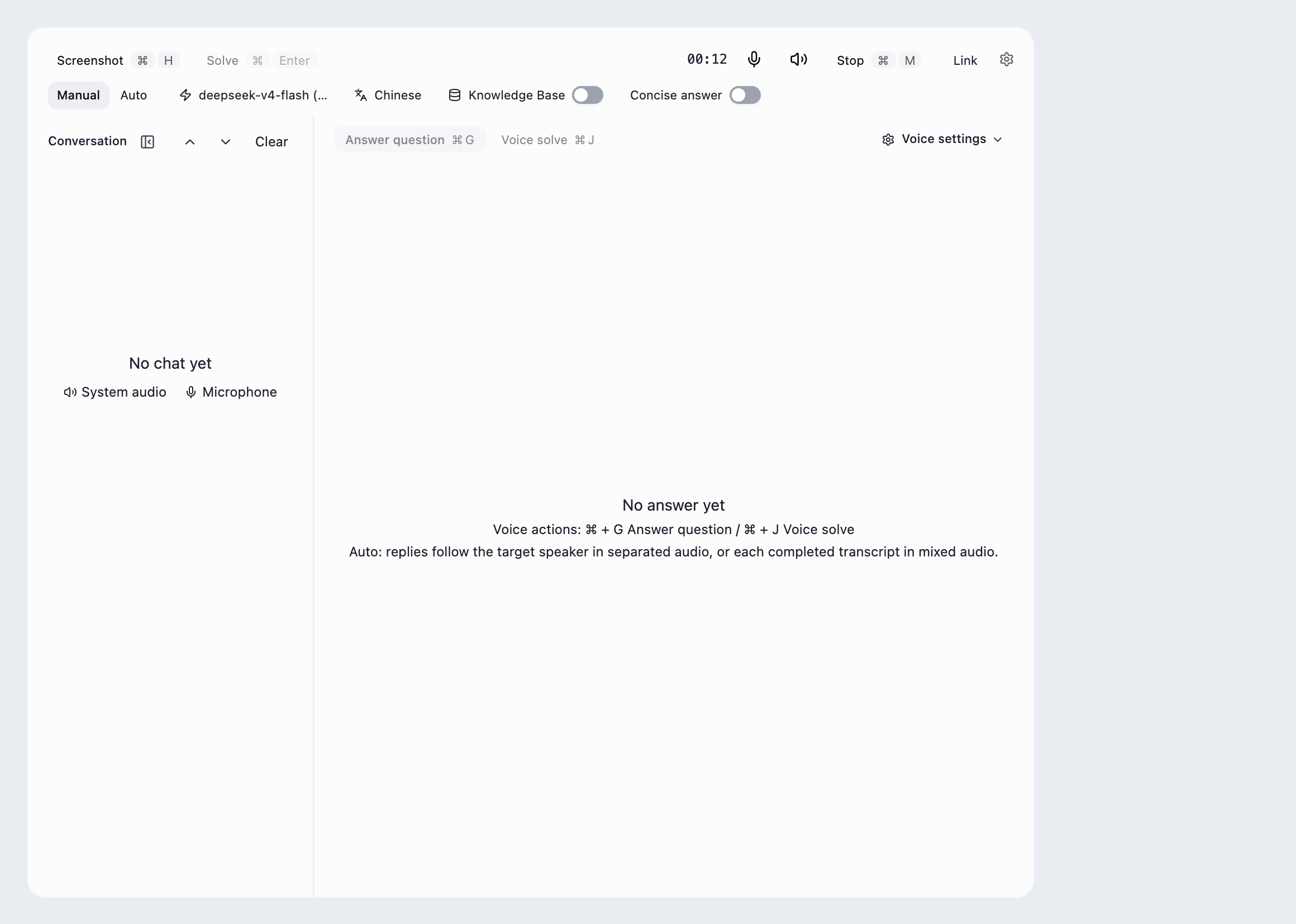
Voice answers can retrieve this session's enabled references automatically, using a built-in default of 5 relevant chunks.
Knowledge Base in Voice settings controls the same switch and takes effect immediately. Identity and materials are fixed when recording starts. Stop recording before changing identity or audio setup. The reading shortcut only controls reading access.
15. Verify with a question the material can answer
As the candidate, transcribe a relevant question and click Answer question. Interviewers use Analyze follow-up.
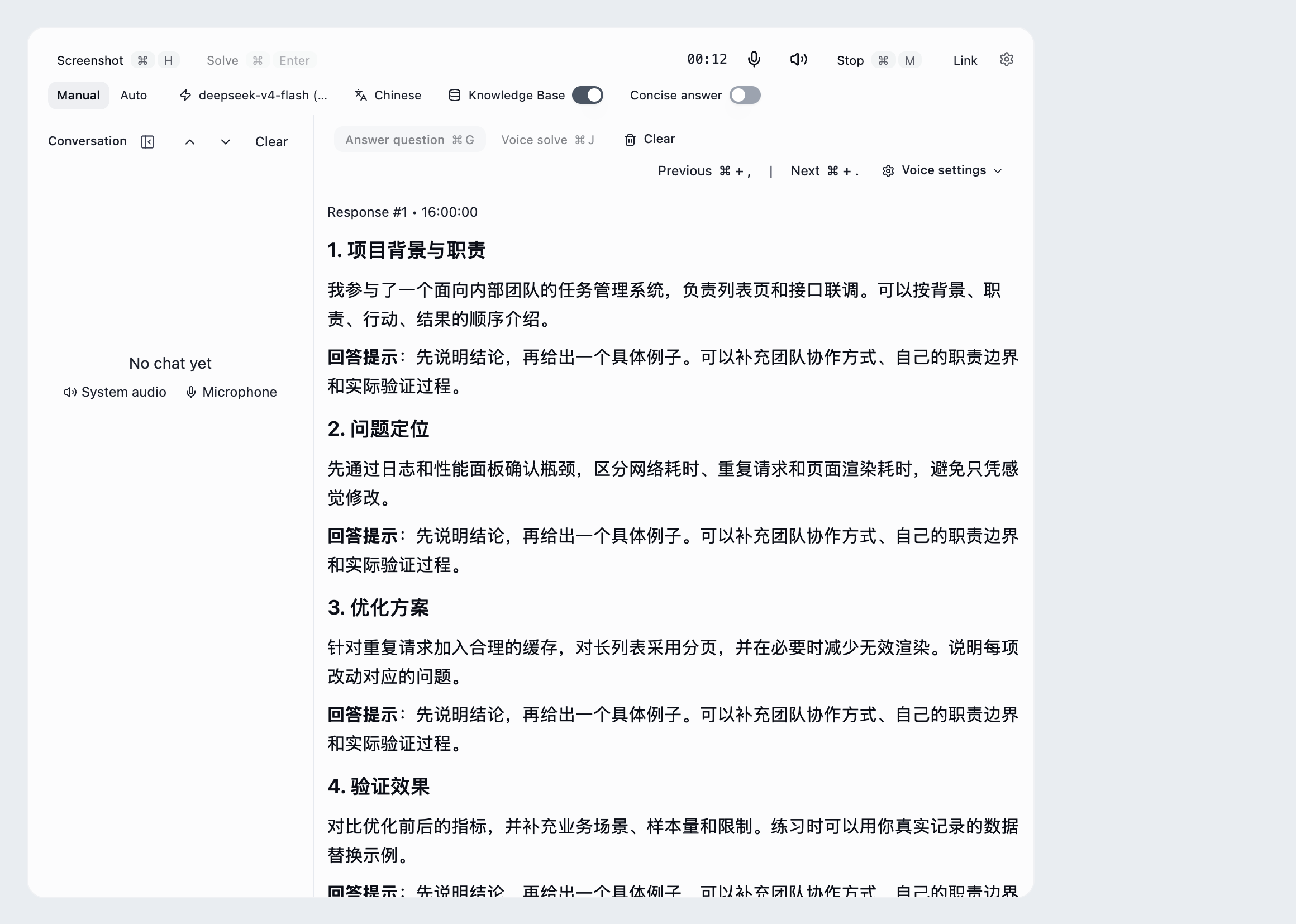
Local materials are processed, a resume and references are enabled, and the voice-answer Knowledge Base switch is on.
Enabling the switch does not guarantee a match for every question. Check enabled status, question relevance and whether the materials were ready when this session started.
Manage documents and voice answers
In Settings → Knowledge Base → Manage documents, the switch on the right enables or disables each document. Its status reads Enabled or Disabled. Disabling retains the document and index. The checkbox on the left selects documents for deletion; click Delete selected to remove them. Use Cancel or × to close the list.
In candidate mode, the selected resume is included only when Knowledge Base is on. In interviewer mode, the selected candidate resume remains background even when the switch is off. Knowledge Base above the answers and in Voice settings controls the same switch, including retrieval from ordinary references. It does not enable disabled documents. Retrieval uses a built-in default of 5 relevant chunks, so there is no quantity to choose.
When recording starts, the session keeps its identity, resume and enabled references. Enabling, disabling or deleting documents, or processing another resume during an interview applies to the next session. Stop recording before changing your identity or audio setup. The Knowledge Base answer switch takes effect immediately and uses the processed and enabled materials fixed at the start of the session.
As the candidate, transcribe a relevant question and click Answer question; interviewers use Analyze follow-up. Enabling the switch does not guarantee a match for every question. Check document status, question relevance and the answer area's Knowledge Base switch if results are unexpected.
Show the shortcut and read documents
Find Show knowledge panel shortcut under Settings → Knowledge Base. Turning it on adds a book button to the toolbar: click once to open the reading panel, and again to collapse it. The default Ctrl / ⌘ + K also works without showing the button first.
The reading panel shows processed and enabled materials on this device. If a document is missing, check its processing result and enabled status in Manage documents, then refresh the reading list. Reading and voice retrieval have separate controls. Showing or collapsing the reading panel does not change the Knowledge Base answer switch.
INTERACTIVE WALKTHROUGH
Try it: show the knowledge shortcut and read documents
Click the numbered markers to see what happens next in the client, or use the tutorial controls below.
Click the gear on the toolbar
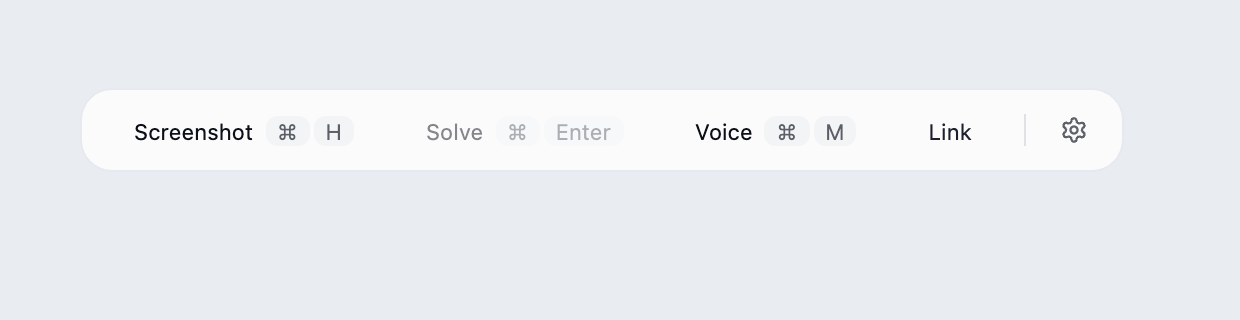
Find the desktop client's floating toolbar and click the gear at its right edge.
What you should see: The settings panel opens with languages, models, capture mode and links near the bottom.
These steps use fixed examples. Click the yellow image marker or use Next tutorial step below.
Show all illustrated steps
1. Click the gear on the toolbar
Find the desktop client's floating toolbar and click the gear at its right edge.
The settings panel opens with languages, models, capture mode and links near the bottom.
These steps use fixed examples. Click the yellow image marker or use Next tutorial step below.
2. Click Knowledge Base at the bottom of Settings
Open Settings, then find and click Knowledge Base near the bottom. This walkthrough has processed and enabled a resume and project material locally using the steps above.
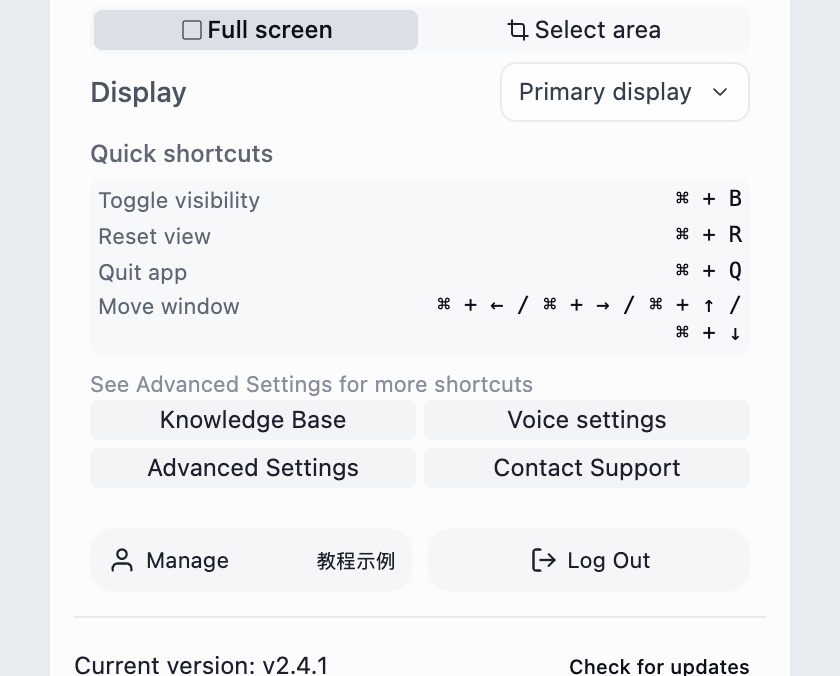
The Knowledge Base settings window opens, including the toolbar shortcut switch.
File processing and Manage documents are in the same Knowledge Base window. Next, enable the reading shortcut. Knowledge-base use in voice answers is controlled above the answers or in Voice settings.
3. Turn on Show knowledge panel shortcut
Find Show knowledge panel shortcut and click the switch on its right to turn it on.
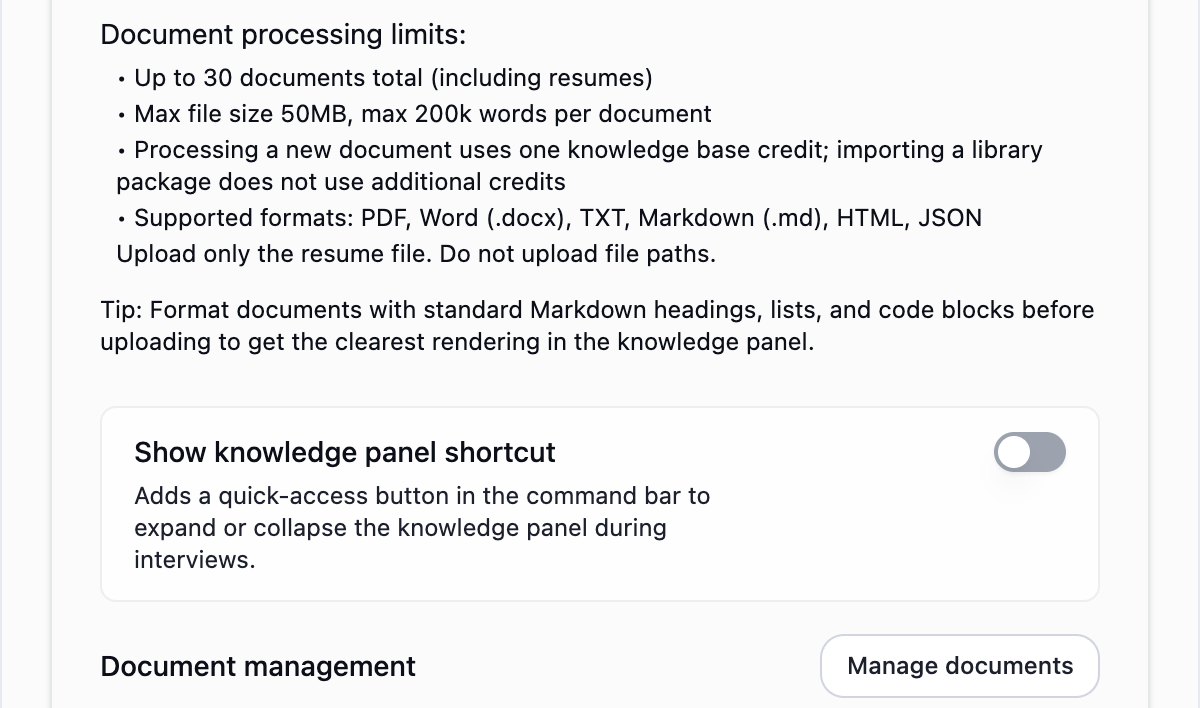
The toolbar gains a book button and a knowledge-panel shortcut hint.
This setting controls button visibility. It does not automatically open the panel or enable Knowledge Base above the answers or in Voice settings.
4. Close the Knowledge Base window and return to the toolbar
After enabling the switch, click × at the top right of the Knowledge Base window, then close Settings to return to the toolbar.
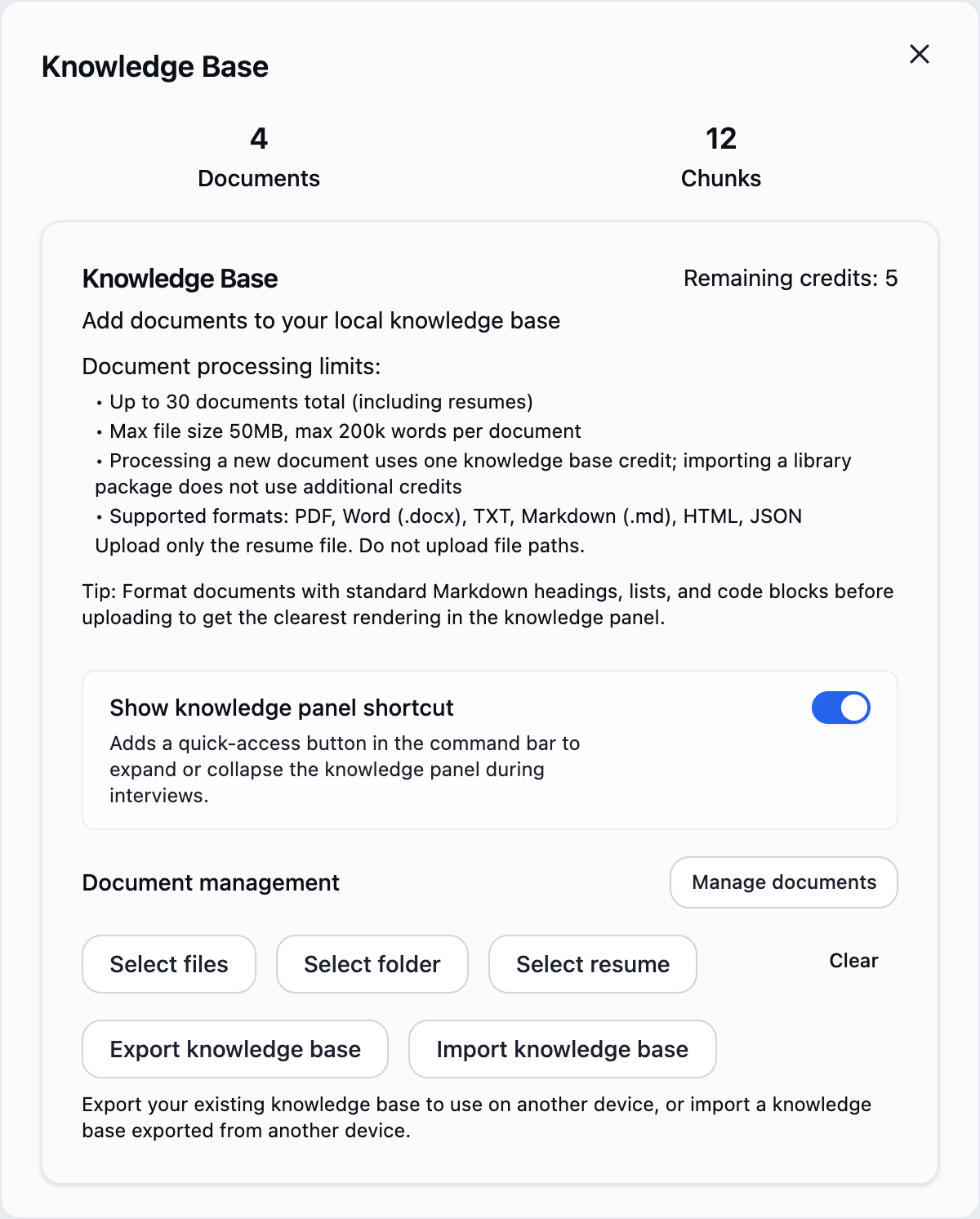
The book button is now available on the toolbar.
The switch saves immediately. Closing settings does not delete local documents or change enabled status. There is no need to click Start analysis to save it.
5. Click the book button on the toolbar
Find the book button beside Voice and click it once. Alternatively use the default Ctrl / ⌘ + K: Ctrl on Windows, ⌘ on Mac.
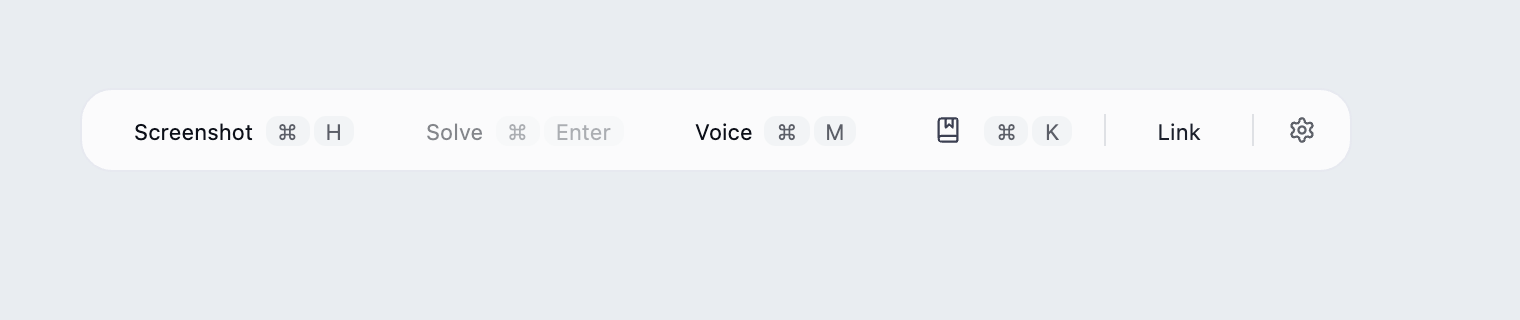
The reading panel lists processed and enabled materials on this device, with the current document on the right.
The shortcut can toggle the panel even when the button is hidden. If you customized the shortcut, use your saved combination.
6. Click a document in the left list
Click Project experience.md in the left list. Each document row is clickable; selecting it loads its content on the right.
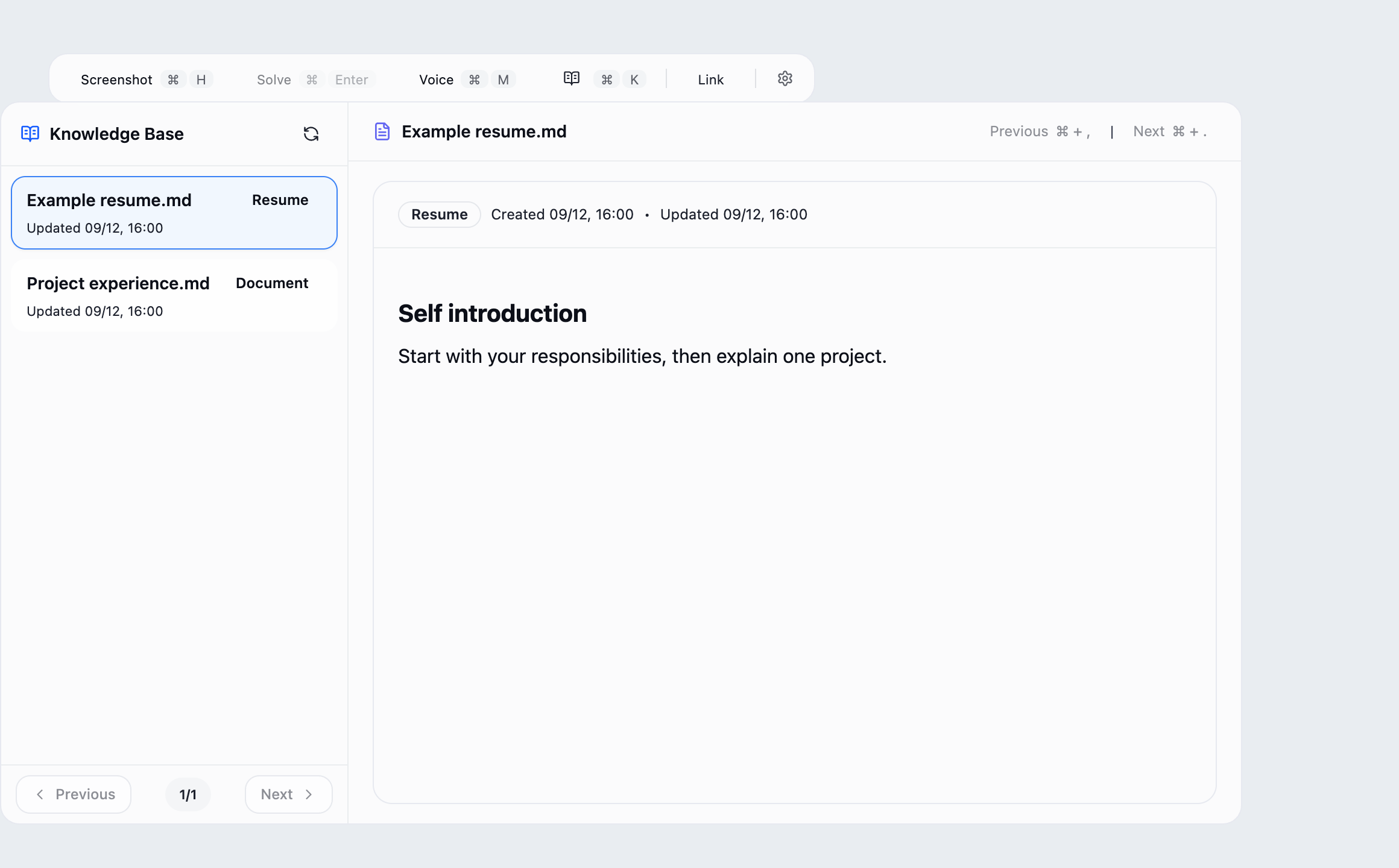
The selected row is highlighted and the right title and content change to Project experience.md.
Bottom-left controls page through the list. If material is missing, check its processing result and right-hand enabled switch in Manage documents, then refresh the reading list. Enable new documents as needed after importing a library package.
7. Click Next at the top right to continue reading
Read the right-hand content, then click Next beside the document title. Use Previous in the same area to go back.
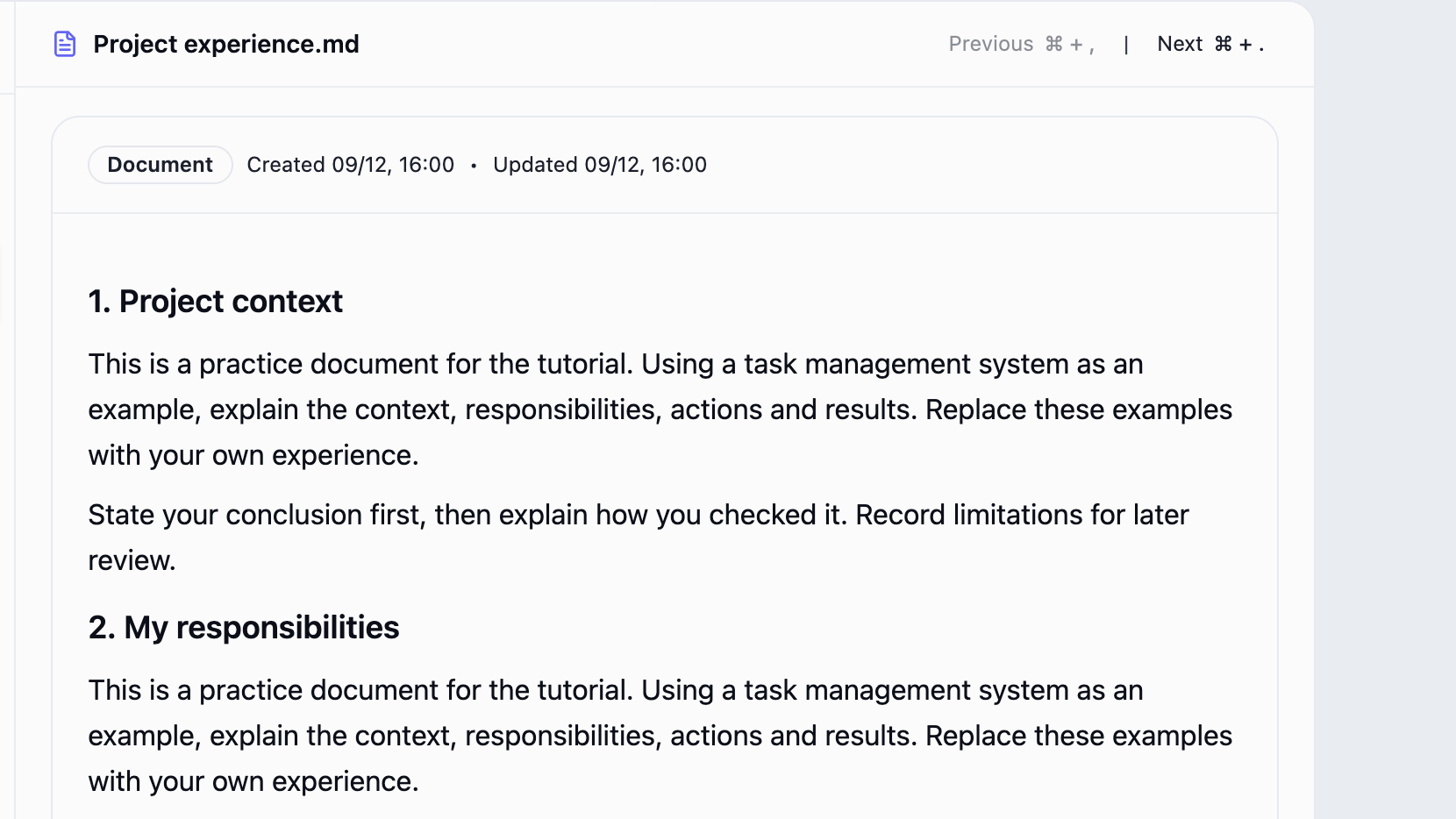
The right side shows later content from the same document; the selected document stays the same.
Top-right controls page through the text; bottom-left controls page through the document list. Reading does not trigger an AI answer.
8. Click the toolbar book button again when finished
When finished reading, click the same toolbar book button again, or press Ctrl / ⌘ + K again.
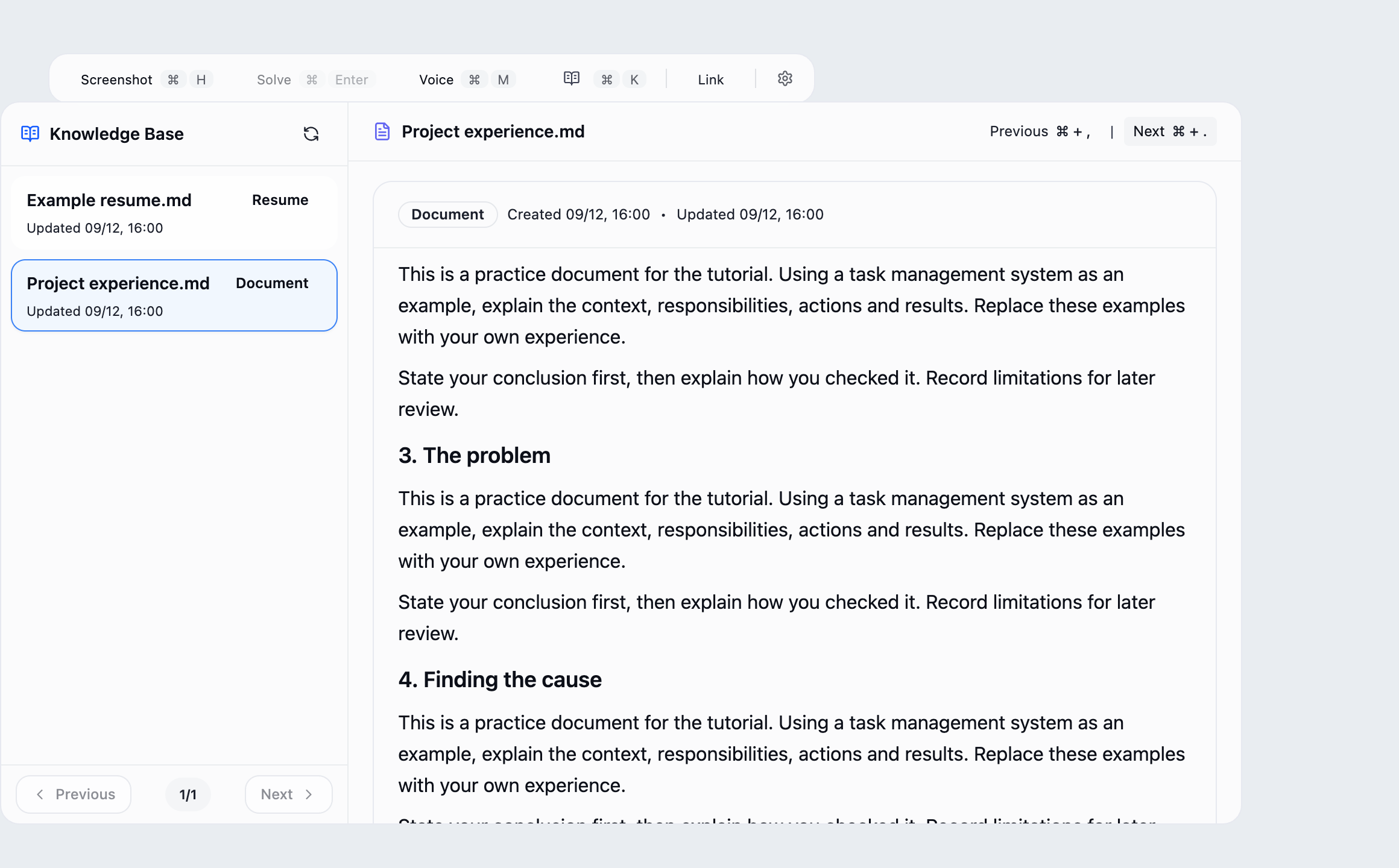
The reading panel collapses while the toolbar remains available for screenshot and voice controls.
Collapsing hides the panel without deleting documents or changing knowledge-base use in voice answers.
9. Confirm the panel is collapsed; reopen it whenever needed
Check that the document panel is hidden and the book button remains on the toolbar. Click it whenever you need to read again.
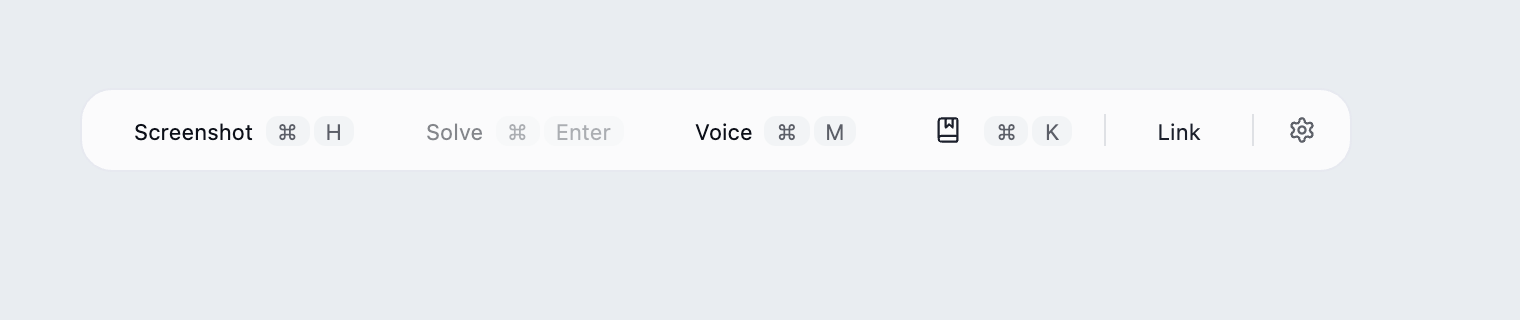
You have shown the shortcut, opened a document, paged through its text and collapsed the panel.
To have AI answers reference these documents, enable Knowledge Base above the answers or in Voice settings as shown in the previous walkthrough. Reading and retrieval use separate controls.
| What you want to do | Where to go |
|---|---|
| Add reference documents | Settings → Knowledge Base → Select files / Select folder → Start analysis |
| Add your resume or a candidate's resume | Settings → Knowledge Base → Select resume / Select candidate resume → Process resume |
| Enable, disable or delete materials, or switch resumes | Settings → Knowledge Base → Manage documents |
| Read enabled materials | Toolbar book button or Ctrl / ⌘ + K → select on the left → read and page on the right |
| Retrieve references for voice answers | Above the answers or in Voice settings → Knowledge Base |
| Transfer the whole library to another device | Settings → Knowledge Base → Export knowledge base / Import knowledge base |
Transfer your knowledge base between devices
Use Export knowledge base and Import knowledge base in the Knowledge Base window to export your existing knowledge base to use on another device, or import a knowledge base exported from another device.
Export creates a .gankkb package containing all library documents and their indexes, including disabled documents. Copy the package to another device, click Import knowledge base, and choose the file.
Import merges documents into the existing local library without replacing it. Documents with the same type (resume or ordinary document) and identical body text are skipped. The result shows how many documents were imported or skipped. Import does not automatically change the enabled selection. Use Manage documents to enable new references or switch resumes as needed. Importing a library package does not use additional document-processing credits.
Recommendations
- Split materials by topic for better retrieval and maintenance.
- Start with frequently used core content, then expand incrementally.
- Disable or remove low-quality and duplicated material if answer quality drops.