When to use
Both Windows and macOS desktop clients support keyboard protection. Enable it when you need to prevent selected modifier keys and their combinations from reaching other apps.
| System | Section in Advanced Settings | Keys you can block |
|---|---|---|
| Windows | Windows Keyboard Protection | Left Ctrl, Right Ctrl |
| macOS | macOS Keyboard Protection (macOS 键盘防护) | Left Command, Right Command |
This capability is built into the client now. You no longer need a browser extension.
How to enable
- Open Settings in the client
- Go to Advanced Settings
- Find and expand Windows Keyboard Protection or macOS Keyboard Protection
- Turn on Enable keyboard protection
- Enable the left and/or right side: Block Left Ctrl / Block Right Ctrl on Windows, or Block Left Command / Block Right Command on macOS
The walkthrough below uses Windows screenshots. Follow the same steps on macOS with Command instead of Ctrl. Some current client labels remain Chinese.
INTERACTIVE WALKTHROUGH
Try it: configure keyboard protection
Click the numbered markers to see what happens next in the client, or use the tutorial controls below.
Click the gear on the toolbar
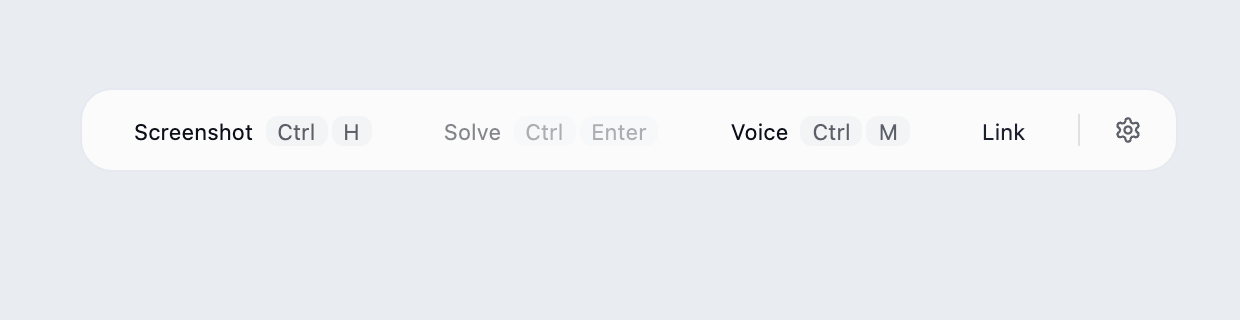
Find the desktop client's floating toolbar and click the gear at its right edge.
What you should see: The settings panel opens with languages, models, capture mode and links near the bottom.
These steps use fixed examples. Click the yellow image marker or use Next tutorial step below.
Show all illustrated steps
1. Click the gear on the toolbar
Find the desktop client's floating toolbar and click the gear at its right edge.
The settings panel opens with languages, models, capture mode and links near the bottom.
These steps use fixed examples. Click the yellow image marker or use Next tutorial step below.
2. Open Advanced Settings near the bottom
Look near the bottom of the settings panel and click Advanced Settings, alongside Knowledge Base and Voice Settings.
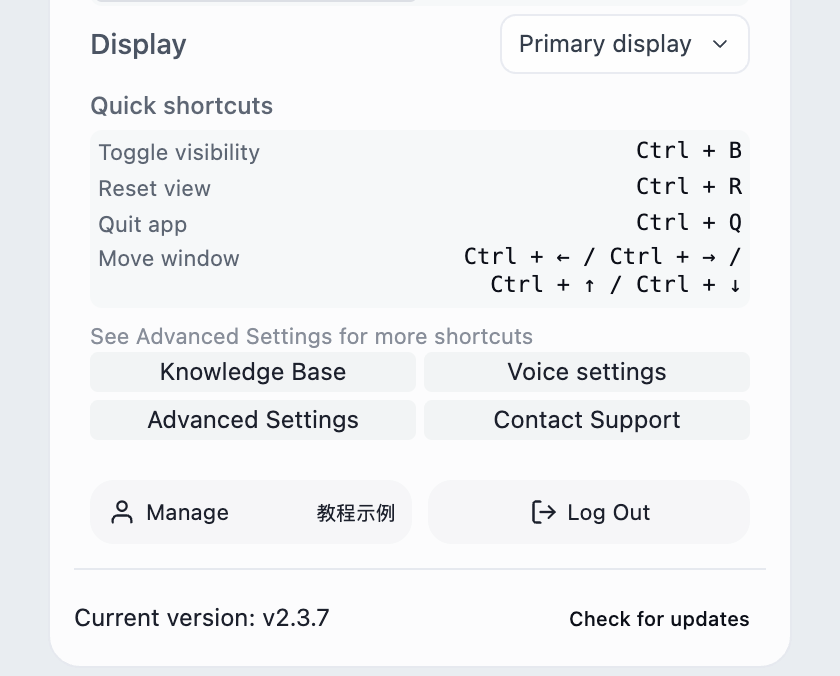
The advanced window opens. Click a section heading to expand it; scroll inside the window to find lower sections.
The image focuses on the entry buttons. Opening the window does not change a setting.
3. Expand keyboard protection in Advanced Settings
Find Windows Keyboard Protection or macOS Keyboard Protection and expand the heading.
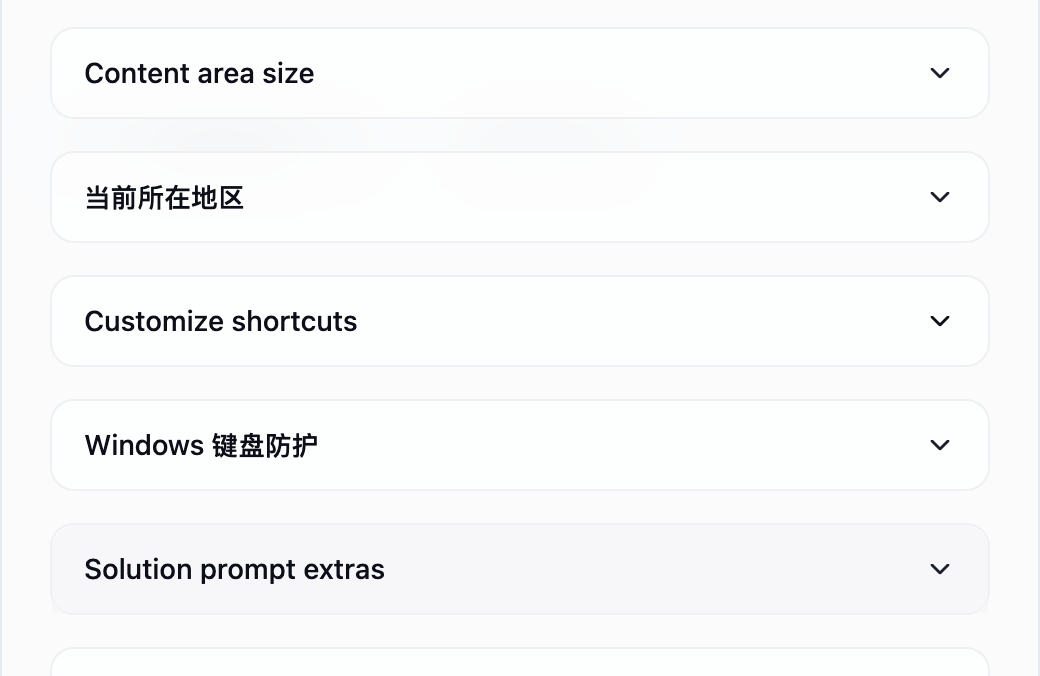
A master switch and separate left and right Ctrl (Windows) or Command (macOS) switches appear.
Both Windows and macOS are supported. These screenshots use Windows; follow the same steps on macOS with Command instead of Ctrl. Some current client labels remain Chinese.
4. Turn on the master protection switch first
Click the Enable Keyboard Protection switch. The left and right controls are unavailable while it is off.
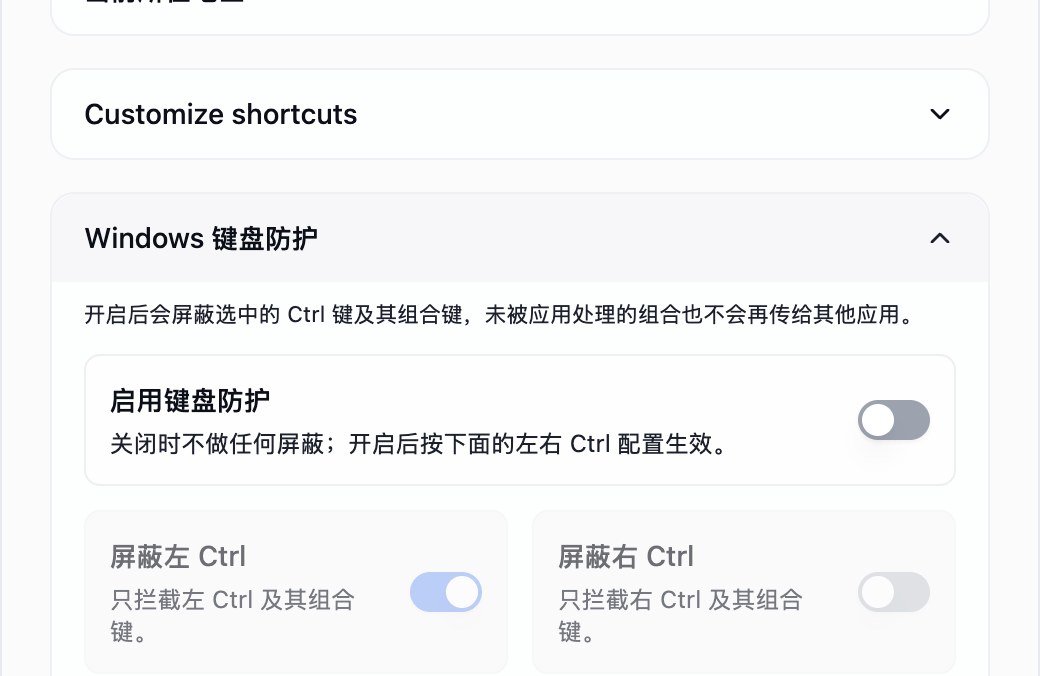
Protection is enabled and the side controls become available.
The master switch enables the feature; the side switches choose which modifier key it applies to.
5. Confirm left-side blocking is on and right-side blocking is off
Keep left Ctrl enabled and right Ctrl disabled in this example. On macOS, enable left Command and leave right Command disabled. If your state differs, click the appropriate switch to adjust it.
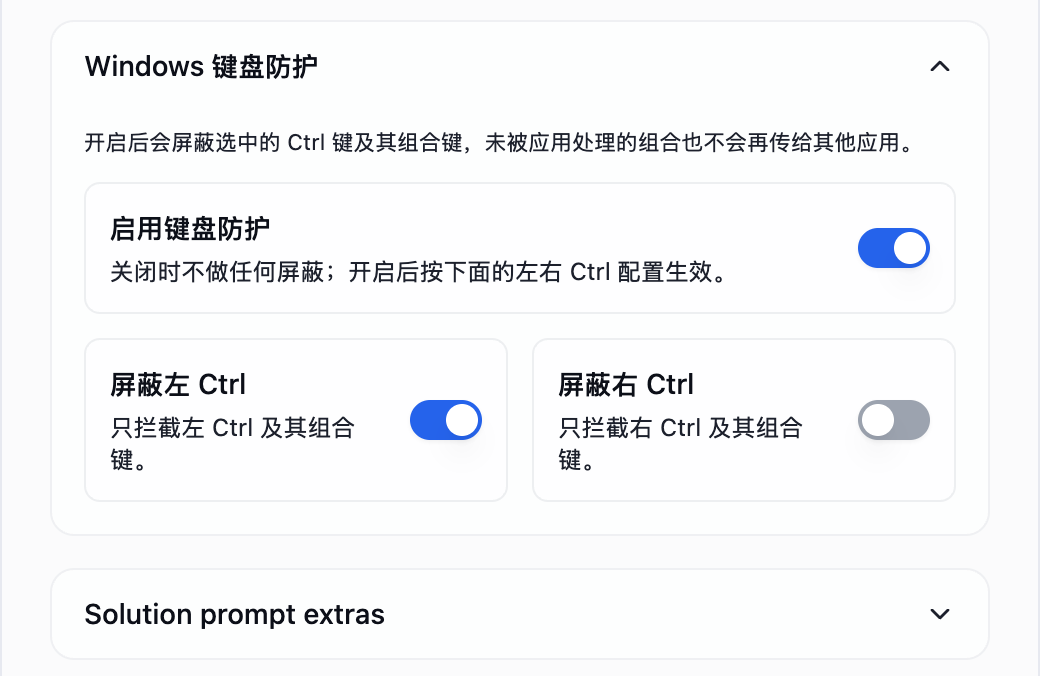
The left side is selected for protection and the right side remains available for everyday use.
Left Ctrl is already on in this image; clicking it again would turn it off. Changes save automatically without a separate Save button.
6. Close settings and test both sides
Close Advanced Settings and the settings panel. On your computer, use disposable practice text to test left and right Ctrl (Windows) or Command (macOS) combinations, then follow this page's checking guidance.
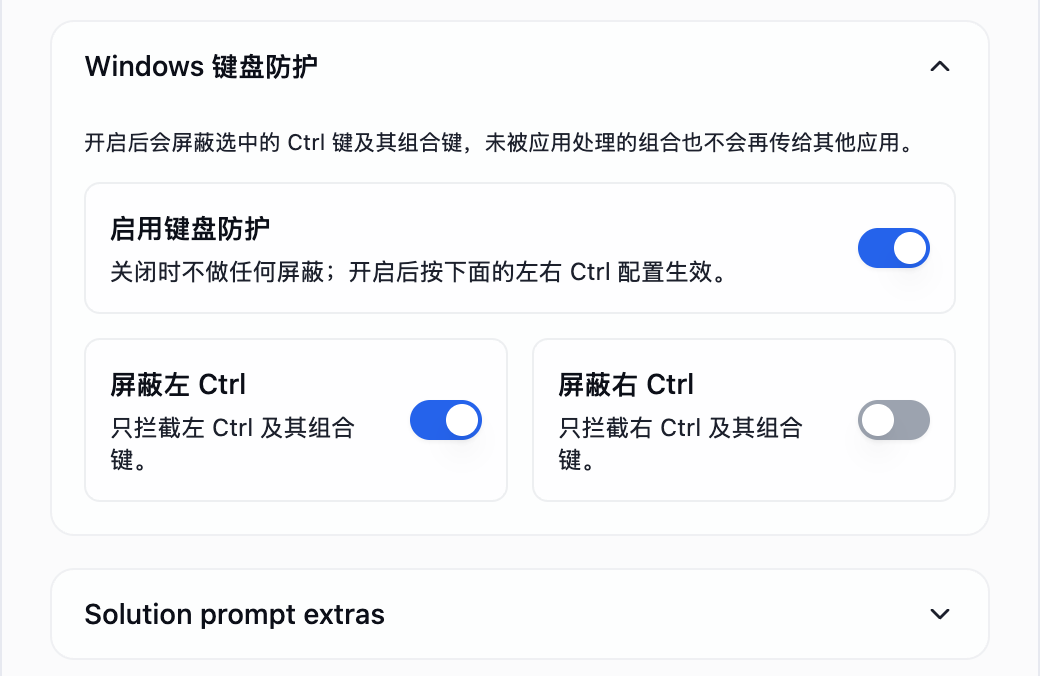
Confirm that the selected side behaves as expected and the retained side still supports normal operations.
These screenshots do not prove OS-level protection works. Turn off the master switch if it interferes with normal use.
What each option does
- Enable keyboard protection: no blocking when off; the left/right settings take effect when on
- Block Left Ctrl / Command: blocks the corresponding left modifier key and its combinations only
- Block Right Ctrl / Command: blocks the corresponding right modifier key and its combinations only
Behavior
- The client intercepts the selected Ctrl (Windows) or Command (macOS) key and its combinations. Verify the result on your computer.
- The unselected side remains available. Select at least one side when enabling protection.
- Protection follows saved custom shortcuts, including changes to the letter key only.
- Protection pauses while you edit a text field inside the client and resumes after you leave it. Keep the test webpage in front when checking browser events.
Recommended setup
- Start with the left side only: Ctrl on Windows or Command on macOS
- Keep the right side available if you still need a normal copy/paste fallback
- Run the keyboard event check below after changing protection settings or shortcuts
Test shortcuts after setup
Keyboard protection corresponds to Keyboard events in the site's self-check tools. It displays the keys received by the webpage so you can compare whether the selected modifier and its combinations reach the page with protection off and on.
- Keep the client running and open Keyboard events. Recording starts automatically; no test-area click is needed. Keep the test page in focus.
- Press A once and check for both a keydown and a keyup event to confirm recording works.
- Turn keyboard protection off, return to the test page, clear the log and try one of your usual client shortcuts. Note which keys the page receives.
- Enable protection and confirm which modifier side is blocked, return to the test page and clear the log again. Retest the same shortcut with the same modifier side. Inspect the keys, locations and modifiers for the blocked Ctrl / Command key or combination. Command on macOS appears as Meta / ⌘ in the log.
- Also check that the client performs the intended action, such as showing / hiding its window. If the blocked keys still appear, check the main protection toggle, the left/right options and the actual keys used, then test again.
Keys on the unblocked side may still appear normally. This page cannot receive keys sent to the address bar, another tab or another app, and the browser or operating system may handle some shortcuts first. Missing events alone do not prove protection or the client action worked; compare both runs and check the actual client action. Use Page focus separately to test focus changes.
Notes
- Supported in both Windows and macOS desktop clients without a browser extension
- If keyboard protection is unavailable, follow the app's guidance to check system permissions, update to the latest client and restart the app
- Test your setup before a real interview