Find your symptom and test the steps once. If it persists, provide your client version, operating system, time, exact actions and error text.
I paid, but the model is still locked
- Confirm the client uses the paid account and payment succeeded.
- Find the solution model in Settings, or the voice model in the voice panel.
- Click the circular refresh arrow beside the model list, wait, then select the model again.
- Test a short question. If still locked, check your entitlements and contact support with the order number and model name.
The model errors, never answers or stops midway
- Check Current region in Advanced Settings matches your network location and wait for configuration to refresh.
- Compare a personal network or phone hotspot. If you use a proxy, also compare with it disabled.
- Refresh built-in models or try another available model. For a custom API, check the base URL, model name, key and supported request parameters.
- Read any truncation, content-filter or unexpected-stream-end error before retrying. Do not treat unfinished output as a complete answer.
Avoid repeated clicks before the current request ends. Keep the error details, model name and time for support. Custom API guide.
Mac permissions are enabled, but I cannot proceed
The permission page checks screen recording, accessibility and microphone together. Grant each permission, return to the client and wait for refresh, or click Check again.
- Screen recording / accessibility: enable GankInterview in System Settings.
- Microphone: allow the system prompt. If previously denied, enable it manually under System Settings → Privacy & Security → Microphone.
- If a restart is required, click Restart app or fully quit and reopen. Closing a window is not quitting the application.
Once all three are ready and no restart is pending, the client proceeds automatically. See the current permission interface.
Windows buttons do not respond, or the microphone has no transcript
Quit and reopen the client, then check whether shortcuts still work. For microphone transcription:
- Confirm the capture scenario and microphone toggle.
- Allow desktop apps to access the microphone in Windows privacy settings.
- Confirm the input device works, then say a full sentence and check for text.
- Follow any security-software or permission prompt. If needed, compare with Run as administrator.
Administrator access does not replace microphone permission. For persistent click failures, report the button, whether the first click fails, open panels and OS version.
When does automatic answering trigger?
Choose your role and capture scenario before recording, then select Auto. Rules use the role assigned to each source and the selected scenario; they do not identify speakers by voice in real time.
| Scenario and role | Input for automatic answers |
|---|---|
| Computer call + candidate | Interviewer transcript from computer audio |
| Computer call + interviewer | Candidate transcript from computer audio |
| Phone speaker | Mixed conversation transcript from the microphone |
Computer speakers are included in Computer call. Phone speaker uses the computer microphone; the model knows the transcript may mix both people and does not require manual splitting.
Auto attempts a trigger after a completed transcript segment has more than 3 characters after trimming. An active answer finishes first. Partial text, stopped recording and Manual mode do not trigger automatic answers. Unrelated computer playback or casual talk in phone playback can also trigger; choose Manual to control timing.
Use Ctrl / ⌘ + G or Answer question for Q&A. Use Ctrl / ⌘ + J or Voice solve for spoken coding, math or scenario questions. Concise answer affects Q&A only. Practice the voice flow.
The answer misses earlier context or is too long
Answer background prioritizes recent dialogue, with a budget of 2,000 characters. The current target question and retrieved references are handled separately. Repeat essential conditions in the current question if they are from much earlier in the conversation.
Enable Concise answer in the voice panel for shorter, directly usable Q&A. Ordinary Q&A retains the original answer style. Voice solve uses the appropriate complete solution format and is unaffected by the toggle.
Captures are still continuing the previous question
After an answer, supplementary captures are feedback for that question and the button reads Continue solving. For a different question, click Start over or press Ctrl / ⌘ + R, then capture and solve. The model identifies question types automatically.
The window is too narrow, or voice paging moves too far
Open Settings → Advanced Settings → Content area size and adjust width and height separately. 100% is the default. This does not change text size; use Ctrl / ⌘ + -, 0 and = for zoom. Settings are saved on this device; retry a save error.
Adjust voice paging distance in Voice settings. It is based on the current reading viewport, capped at one screen, and changes with the visible area when you resize height.
An interview record did not upload. Where is the local copy?
With valid transcription, the client saves locally before attempting upload. Very short sessions keep local records only; web uploads also have duration and other requirements. Stop recording before refreshing web records.
- Mac: Finder → Documents →
GankInterview Records, or press⌘ + Shift + Gand enter~/Documents/GankInterview Records. - Windows: File Explorer → Documents →
GankInterview Records. If Documents is in OneDrive, use the system Documents entry.
Markdown files can be opened with a text editor. If Documents is unavailable, the client uses application data; search for GankInterview Records.
Queued uploads retry. Restore connectivity, sign into the original account and keep the client running. If no local transcript exists either, check whether transcription produced text and provide the session time to support.
An update fails or seems stuck
The updated panel shows download progress, verification and error details. Reopen Settings to keep viewing it. During download, use Cancel download and wait for cancellation before retrying. Downloading does not stop recording. Installation ends and saves the current recording before quitting; finish reading or copy the answer you need first.
- Network error: switch to a stable network and use Download again.
- Verification failure: the package failed integrity checks and will not install. If retrying still fails, keep the error details and contact support, or obtain the installer from the official download page.
- Downloaded and verified: click Restart & install. The updated client does not automatically restart after download.
- Installation failure: read the details and retry as offered, or quit and use the official installer.
For failures in an older client, report current version, target version, OS and complete error text. Manual updating from the download page is also available. See pending and historical updates.
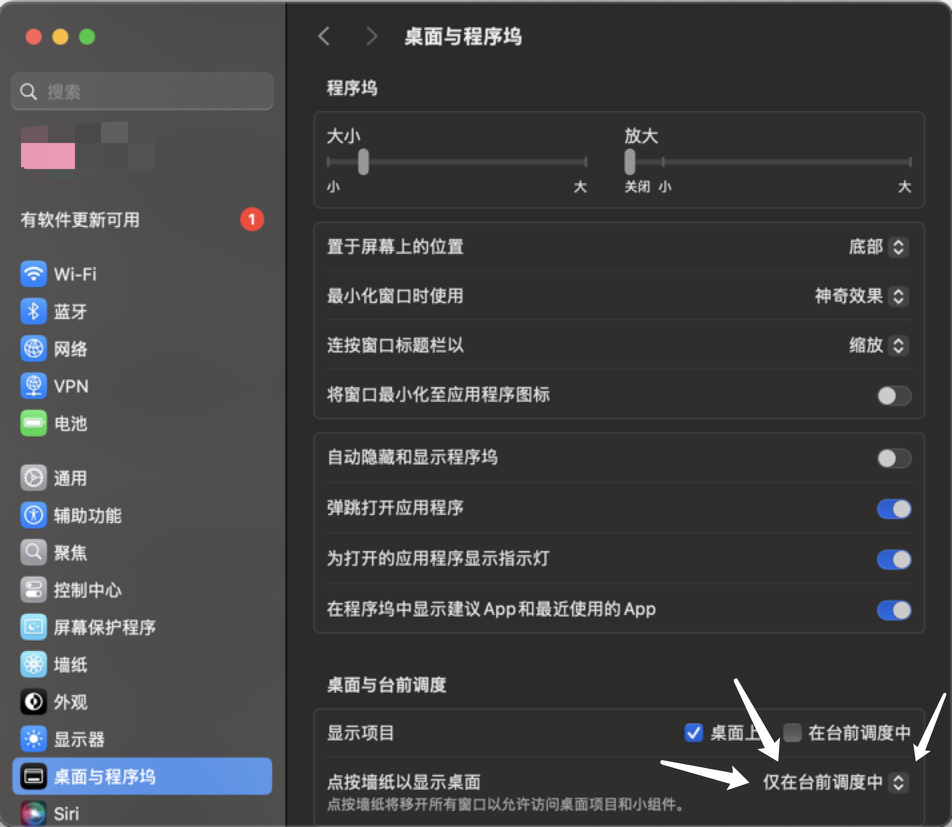
Clicking Mac wallpaper moves the client out of view
Under System Settings → Desktop & Dock → Desktop & Stage Manager, set Click wallpaper to reveal desktop to Only in Stage Manager. Disable Stage Manager too if unused. Check again; use ⌘ + B if the client remains hidden.
How should I configure Tencent Meeting and Zoom?
Before sharing, enable Video fluency priority in Tencent Meeting. In Zoom, select Advanced capture with window filtering under Share Screen → Advanced. See full steps and screenshots, then verify the recipient's view in a real test meeting.